3 Delivery Modes for Reliable VR Headset Compatibility for AEC Teams
3 Delivery Modes for Reliable VR Headset Compatibility for AEC Teams
Three delivery modes cover nearly every stakeholder scenario for a commissioned photorealistic VR walkthrough: tethered PCVR, standalone headset streaming, and WebXR through a browser. The Meta Quest family, Apple Vision Pro, Pico headsets, and PC-tethered SteamVR rigs handle the immersive side, but always pair the build with a browser fallback, because a meaningful share of stakeholders will never put on a headset.
TL;DR:
- Compatibility should be assessed based on stakeholder device access and comfort, not just headset hardware specifications.
- WebXR offers the most universal fallback, allowing stakeholders to view walkthroughs on laptops, phones, or headsets without installation.
- Testing across critical headset families before the presentation prevents live debugging and ensures smooth delivery on the actual meeting day.
- Network quality and IT configurations are crucial for streaming sessions, especially for multi-site reviews, and require pre-meeting verification.
- A well-planned fallback system, including flat views and recorded flythroughs, is essential to accommodate stakeholder reluctance or technical issues during VR sessions.
Table of Contents
- What Is VR Headset Compatibility for a Commissioned Walkthrough?
- Which Delivery Mode Fits Your Session?
- Which Headsets Work With Each Delivery Mode?
- How to Choose Headsets and Delivery Modes for Your Stakeholders
- Session Setup Best Practices That Prevent Failed Demos
- How Rendimension Handles Cross-Device Compatibility
- Bandwidth, Network, and IT Considerations for Streaming Sessions
- Technical File and Engine Compatibility for VR Walkthroughs
- Minimum Hardware and Software Requirements Per Headset
- Common Compatibility Issues and How to Fix Them
- Recommendations for Cross-Platform Compatibility
- Privacy and Security Considerations for Sharing Walkthroughs
- What Actually Matters in VR Headset Compatibility
- Get a Compatibility Assessment for Your Next Walkthrough
- Sources
- FAQ
What Is VR Headset Compatibility for a Commissioned Walkthrough?
VR headset compatibility, in this context, is not about whether a headset runs a specific game or connects to Steam. It is about whether the specific device your board member, lender, or leasing agent owns can actually open the walkthrough your visualization team built. That distinction matters because most guidance floating around online answers the consumer-gaming question, not the commissioning question.
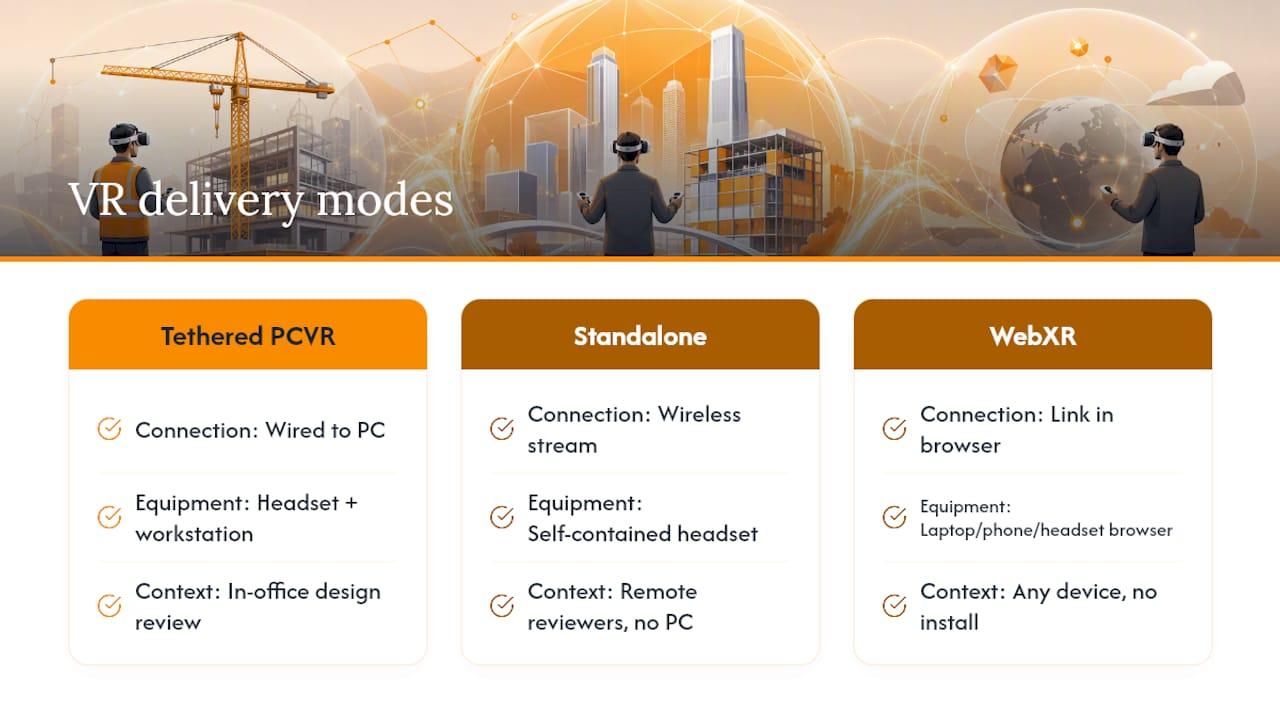
The practical answer breaks into three delivery paths. Tethered PCVR connects a headset directly to a workstation running the live 3D model, which is the standard for in-office design review. Standalone streaming pushes a rendered build wirelessly to a self-contained headset like a Quest, letting remote reviewers join without a cable or a PC nearby. WebXR delivers the walkthrough through a link that opens in any modern browser, on a laptop, phone, or headset browser, with no app install required.
Each mode supports a different slice of the headset market, and each headset family has quirks worth knowing before you schedule a stakeholder session. The rest of this guide breaks down which headsets work with which mode, how to plan a session around your actual audience, and what tends to go wrong when nobody checks compatibility ahead of time.
Which Delivery Mode Fits Your Session?
The mode you pick should follow the audience, not the other way around. Building a Quest streaming rollout for a five-person internal design review wastes setup time; building a browser link for a hands-on materials workshop wastes fidelity.
- Tethered PCVR: The workstation runs the live model, usually through a plugin layer, so changes made in the design software show up in the headset almost immediately. This is the highest-fidelity option and the standard for technical design validation inside a firm’s own office, but it ties the session to one machine and one room.
- Standalone streaming: A rendered build gets pushed wirelessly to self-contained headsets such as the Quest 3, using enterprise streaming platforms built for architecture, engineering, and construction teams. Reviewers do not need a PC at all, which makes this the mode for distributed stakeholders spread across offices or job sites.
- WebXR/browser delivery: A single link opens on a laptop, a phone, or inside a headset’s own browser, and upgrades automatically to immersive mode when a headset is present. Nobody installs anything. This is the zero-friction option for marketing distribution, client previews, and any stakeholder list you can’t fully control.
As a decision rule, practitioner guidance on AEC walkthrough delivery recommends tethered PCVR for technical design validation where the model needs to stay live, standalone streaming when reviewers are distributed and don’t have workstation access, and WebXR whenever the audience includes clients, marketing contacts, or anyone outside your direct control. Mixing two modes for one project, one tethered session for the design team and one WebXR link for the leasing office, is normal, not a compromise.
Which Headsets Work With Each Delivery Mode?
Compatibility splits cleanly by device family once you know which delivery mode you’re running. Here’s how the major headsets line up.
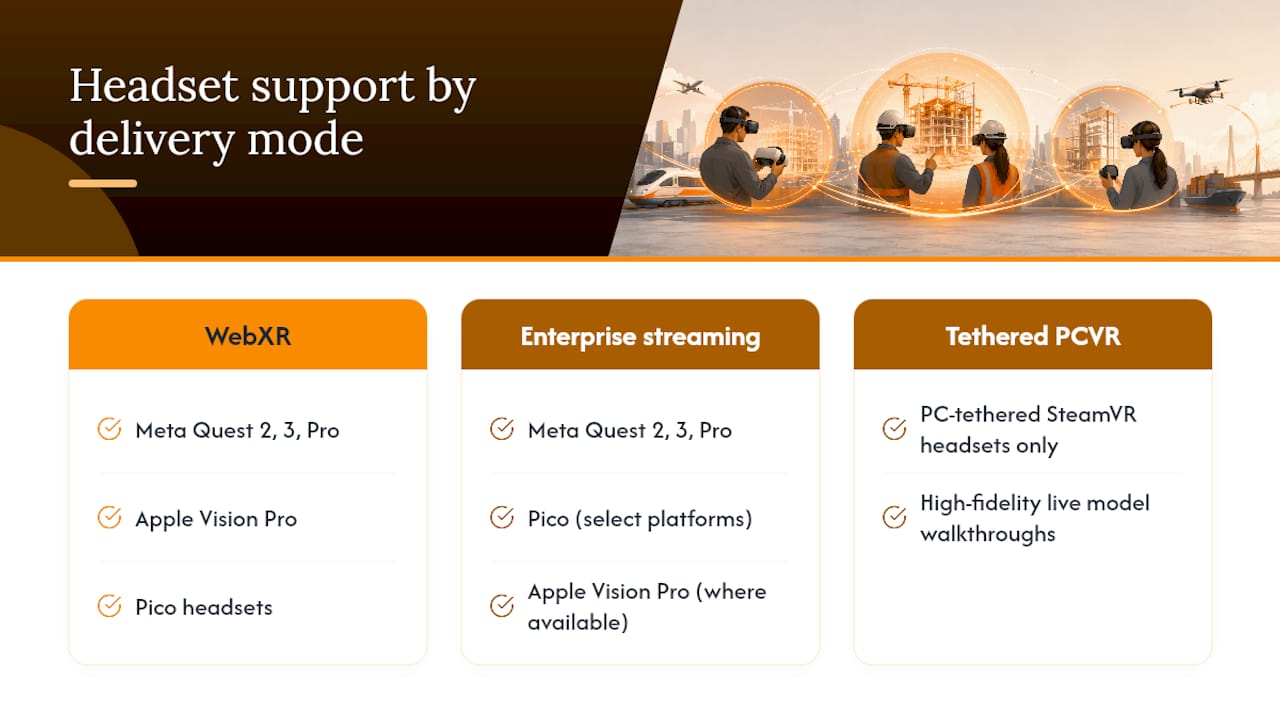
Meta Quest 2, Quest 3, and Quest Pro run comfortably across two of the three modes. They connect to enterprise streaming platforms for standalone sessions, and their built-in browsers handle WebXR links without any extra setup. Autodesk Workshop XR lists Meta Quest 2, Meta Quest 3, and Meta Quest Pro explicitly as supported headsets for its streaming platform, which makes the Quest line the safest default recommendation when you’re shipping headsets to remote stakeholders or running a scaled rollout across multiple offices.
Apple Vision Pro works through its browser for WebXR content and through platform-specific enterprise builds where those exist. The catch is interaction. Vision Pro relies on eye tracking and hand gestures rather than the physical controllers most Quest and Pico sessions use, so a walkthrough tuned for controller-based teleportation may feel unfamiliar to a first-time Vision Pro user. Budget a minute or two of orientation before the actual review starts.
Pico headsets show up most often in enterprise and sales settings, and they’re supported by WebXR along with select enterprise streaming platforms. If a client’s IT department has already standardized on Pico for other training or sales tools, it’s usually compatible with your walkthrough without extra work.
PC-tethered, SteamVR-compatible headsets stay inside the tethered PCVR category. They connect straight to the BIM workstation, which means the highest fidelity available and the ability to walk a live, editable model rather than a pre-baked export. The tradeoff is mobility. These headsets don’t travel to a remote stakeholder’s desk.
Roughly a third of stakeholders in a typical review session will decline the headset entirely, whether from motion sensitivity, unfamiliarity, or simple time pressure, which is why a flat fallback isn’t optional. Build the mirrored view, the spectator browser mode, or a recorded flythrough with the same care as the immersive build. Many reviewers will experience your walkthrough only through that flat view, and it deserves the same production attention as the headset version.
How to Choose Headsets and Delivery Modes for Your Stakeholders
Turning the compatibility map above into an actual procurement decision takes about four steps.
- Audit stakeholder device access and comfort. A lender’s committee, a city planning board, and a design partner have wildly different tolerance for putting on a headset. If you don’t know, ask before the meeting is scheduled, not during it.
- Decide whether fidelity or reach matters more. A design team validating a facade detail needs the live-model precision of tethered PCVR. A leasing team showing a unit to twenty prospective tenants needs reach, which points to WebXR or Quest streaming.
- Assign provisioning responsibility. Decide explicitly who brings a headset, who borrows one from your visualization partner, and who defaults to the browser link. Leaving this unassigned is the single most common reason sessions start twenty minutes late.
- Default to a two-track pairing when the group is mixed. One in-office tethered setup covers the technical reviewers in the room; one WebXR link or shipped Quest 3 covers everyone joining remotely.
Pro Tip: Send the WebXR link to every stakeholder at least 24 hours before the session, even the ones you expect to use a headset. It costs nothing, and it turns “I couldn’t get it to load” into a five-minute problem you solve before the meeting instead of during it.
This two-track default also protects you against the one variable you can’t control: someone showing up who simply won’t wear a headset. Having the browser version ready means that person still participates instead of watching over someone’s shoulder.
Session Setup Best Practices That Prevent Failed Demos
A compatible headset only gets you halfway. Session execution determines whether stakeholders leave with a decision made or a headache.
- Mirror the headset to a large display. Every attendee not wearing the headset should see exactly what the wearer sees, projected on a screen or TV, so the facilitator can narrate and guide without asking “what are you looking at?”
- Preload the scene and test frame rate before anyone arrives. A stutter during load is forgivable; a stutter mid-review reads as unpolished work, even when the model itself is solid.
- Default to seated orientation with teleport locomotion. Free-roam walking induces motion discomfort in a meaningful share of first-time users, and seated teleport keeps everyone comfortable through their first pass.
- Cap the first session at a short duration to keep stakeholders focused and avoid motion fatigue with one or two decision milestones defined in advance, a material choice, a layout sign-off, rather than open-ended exploration that drains attention.
- Keep the WebXR link or a recorded flythrough on standby as the fallback for anyone who declines the headset outright.
Pro Tip: Write your one or two decision milestones on a sticky note taped to the monitor before the session starts. It sounds low-tech, but it keeps the facilitator from letting a fifteen-minute review turn into forty-five minutes of aimless wandering through a hallway.
Mirroring the headset view isn’t just a courtesy. It reduces anxiety for the person wearing the headset, since they know the room can see what they see, and it’s the fastest way to guide a hesitant reviewer toward the specific decision the meeting was called to make.
How Rendimension Handles Cross-Device Compatibility
Rendimension has completed more than 1,000 visualization projects, and VR walkthroughs built for real estate and architecture clients are a core part of that work. The workflow runs in five stages: intake to understand the stakeholder mix, delivery-mode selection based on that mix, build and device testing across the target headsets, session facilitation with mirroring and live guidance, and a final decision log capturing what stakeholders approved.
Testing across headset families before the client meeting, rather than during it, is what separates a walkthrough that closes a sale from one that generates a support ticket. A compatibility check that catches a Vision Pro interaction mismatch on Tuesday is invisible on Friday, when it’s actually presented to the board.
, Rendimension
Bandwidth, Network, and IT Considerations for Streaming Sessions
Standalone streaming and multi-site sessions live or die on network quality, not headset specs. A Quest streaming a rendered scene from a cloud instance needs a stable, low-latency wireless connection, and most corporate guest Wi-Fi networks were never designed for that load.
Before a distributed session, confirm three things with the host site’s IT contact: available upload and download bandwidth, whether the guest network isolates devices from each other (which can break peer discovery for some streaming platforms), and whether a firewall blocks the ports the streaming platform uses. A conference room with excellent Wi-Fi for laptops can still choke a VR stream if the network prioritizes web traffic over the sustained throughput a headset needs.
For multi-site sessions, where stakeholders in two or three offices join the same walkthrough, latency matters more than raw speed. A facilitator in New York guiding a reviewer in Denver through a synchronized scene will notice even small delays as a laggy, disorienting experience. Where possible, have each site stream from a local device rather than routing everyone through one central connection.
The simplest risk mitigation is redundancy: confirm bandwidth a day ahead, have a wired connection available as backup for the tethered PCVR rig, and always keep the WebXR link ready, since a browser session tolerates network hiccups far better than a live headset stream. If the network fails entirely, the fallback isn’t a ruined meeting, it’s a slightly less immersive one.
Technical File and Engine Compatibility for VR Walkthroughs
Photorealistic VR walkthroughs get built on real-time engines, most commonly Unity or Unreal Engine, which take architectural or BIM source files and convert them into interactive, headset-ready experiences. The source model, whether it started in Revit, SketchUp, or another modeling tool, gets optimized and reassembled inside that engine before it ever reaches a headset.
This matters for commissioning teams because the export path affects both fidelity and turnaround. A model with excessive polygon detail or unoptimized lighting data will bog down performance in a headset, causing the frame drops that make stakeholders motion sick within minutes. A visualization team’s job includes stripping and optimizing that data so the walkthrough runs smoothly at the frame rate headsets need, typically 72 to 90 frames per second depending on the device.
For tethered PCVR, the engine build often integrates directly with the design software through a live-link plugin, so edits to the model show up in the headset almost instantly. Standalone streaming and WebXR builds, by contrast, use a pre-baked export, since the headset or browser is displaying a rendered version, not the live source file.
The practical takeaway for a commissioning team: you don’t need to know Unity from Unreal to hire this work well, but you should ask your visualization provider which engine they use and whether the build includes a WebXR export alongside the headset version. That single question filters out providers who can produce a beautiful tethered demo but have no answer for stakeholders joining from a laptop.
Minimum Hardware and Software Requirements Per Headset
Photorealistic detail is demanding, and each headset family has a different ceiling for what it can render smoothly.
Tethered PCVR needs a workstation with a capable GPU, since the headset itself is essentially a display, and all rendering happens on the connected machine. This is why tethered sessions deliver the highest visual fidelity: the model’s texture detail, lighting, and reflections are limited by the workstation, not the headset.
Standalone headsets like the Quest 3 render on their own onboard chipset, which caps how much geometric and texture detail a scene can carry before frame rate suffers. Builds intended for standalone streaming get simplified compared to a tethered version, trading some visual richness for the freedom of not needing a cable or nearby PC.
Apple Vision Pro sits somewhere between the two, with stronger onboard processing than most standalone headsets but still well short of a dedicated workstation, and its content needs to account for the device’s specific display resolution and interaction model.
On the software side, most headsets need their manufacturer’s companion app or firmware kept current, and enterprise streaming platforms typically require an account and a compatible app installed on the headset ahead of time. WebXR sidesteps nearly all of this, since the browser handles compatibility automatically, which is exactly why it works as the universal fallback rather than the primary showcase format.
Common Compatibility Issues and How to Fix Them
Most VR session failures trace back to a handful of repeat offenders, and nearly all of them are preventable with a five-minute check before the meeting starts.
A headset that won’t connect to the streaming platform is usually a firmware or app-version mismatch. Update the headset’s software the day before, not the morning of, since some updates take longer than expected and can lock the device mid-install.
A WebXR link that loads flat instead of immersive on a headset browser usually means the browser doesn’t recognize the WebXR session request, often because the headset’s browser is out of date or the link wasn’t opened directly in that browser. Testing the exact link on the exact device beforehand catches this every time.
Stuttering or dropped frames during a standalone stream almost always point back to network bandwidth rather than the headset itself, which is why the network checks described earlier matter more than most teams expect.
Motion sickness reports from first-time users usually trace to free-roam locomotion rather than seated teleport, or to a frame rate that dipped below the device’s comfort threshold during a heavy scene. Switching to teleport and simplifying the scene’s most detail-heavy areas resolves most of these complaints.
Finally, a stakeholder simply refusing to wear the headset is not a technical failure, it’s a planning gap. Have the flat fallback ready before it becomes the only option in the room.
Recommendations for Cross-Platform Compatibility
Treat cross-platform compatibility as a build requirement, not a nice-to-have added after the fact. That means testing the finished walkthrough on at least one device from each family your stakeholder list actually includes, rather than assuming a Quest build will behave identically on a Vision Pro.
Standardize on WebXR as the baseline delivery format whenever the stakeholder list includes anyone outside your organization. It’s the one path that works regardless of what device shows up, and architectural visualization teams building WebXR-native experiences commonly test a single build across Meta Quest, Apple Vision Pro, and Pico while keeping a laptop and phone fallback available.
Keep a device-testing checklist per project: which headsets were tested, which streaming platform was used, and what the fallback plan is if a device fails to connect. This turns compatibility from a last-minute scramble into a two-line entry in your project file, and it means the second and third sessions for the same project don’t repeat the same troubleshooting.
Privacy and Security Considerations for Sharing Walkthroughs
A commissioned walkthrough often shows unreleased designs, pricing context, or interior layouts that a developer doesn’t want to circulate before launch, which makes distribution control a real planning item, not an afterthought.
WebXR links are the easiest to share and the easiest to leak, since a plain URL can be forwarded without any access control. If confidentiality matters, use a platform that supports password protection or expiring links rather than an open link posted in an email chain. Several enterprise streaming platforms include access logs showing who opened a session and when, which matters for developments still in a sensitive pre-launch phase.
Standalone streaming sessions that route through a cloud-hosted build should confirm where that build is hosted and how long it stays live after the project wraps. A forgotten public link to a still-unreleased luxury development is a real risk, not a hypothetical one.
For tethered PCVR, security is largely physical: the workstation holding the live model should follow the same access controls as any other machine with confidential client files. Before sharing any walkthrough externally, confirm with your visualization partner how long builds stay hosted, who can access them, and whether links expire automatically once the review period ends.
What Actually Matters in VR Headset Compatibility
The conventional advice on this topic treats headset compatibility as a specs problem: which device supports which resolution, which controller works with which app. That framing misses what commissioning teams actually need, which is a mapping from stakeholder type to delivery mode, decided before the build starts, not troubleshot in the room.
Most compatibility failures in real sessions aren’t hardware failures at all. They’re planning failures: nobody asked whether the lender’s committee would wear a headset, nobody tested the WebXR link on the exact browser the client would use, nobody built a flat fallback because the team assumed everyone would want the immersive version.
The priority for a commissioning team is not chasing the newest headset. It’s building every walkthrough with a WebXR export from day one, treating it as the default rather than the backup, and reserving tethered PCVR for the handful of sessions where live-model precision genuinely earns its complexity. Get that sequencing right, and headset compatibility stops being a risk and becomes a checklist item.
, Rendimension
Get a Compatibility Assessment for Your Next Walkthrough
Some visualization providers offer cross-device testing to avoid live debugging during client presentations. VR walkthroughs are commonly tested across major headset families and include a WebXR build before delivery to stakeholders.
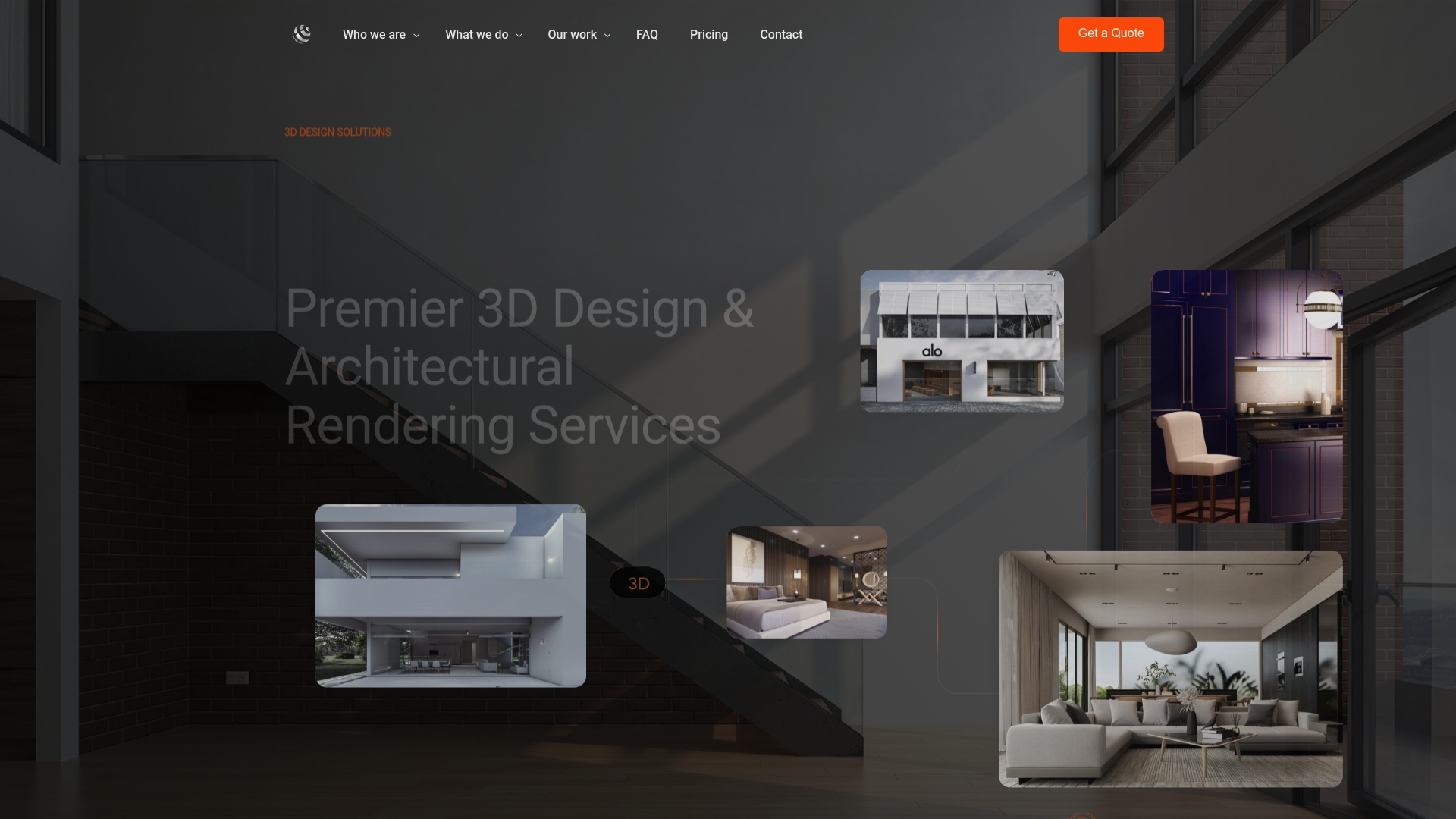
That means no scrambling over a firmware mismatch the morning of a board presentation, and no stakeholder left staring at a loading screen because nobody checked their browser. Whether you need a single design-review build for an in-office session or a full package spanning tethered PCVR, standalone streaming, and a public-facing WebXR link, the 3D walkthrough services page outlines what’s included. Request a compatibility assessment or a demo build through Rendimension’s services page and get your next stakeholder session running on every device it needs to.
Sources
- VR Headset Compatibility for Autodesk Workshop XR
- VR Walkthrough Solutions for AEC Firms: Tools, Delivery, Client Sessions
- Architectural Visualization, real-time 3D & VR
FAQ
Which VR headsets support commissioned walkthroughs?
Meta Quest 2, Quest 3, and Quest Pro, Apple Vision Pro, Pico headsets, and PC-tethered SteamVR-compatible headsets all support commissioned photorealistic walkthroughs, depending on the delivery mode used.
Do stakeholders need a headset to view a VR walkthrough?
No. WebXR delivery lets stakeholders view the walkthrough through any modern browser on a laptop or phone, and it upgrades to immersive automatically if a headset is present.
What’s the difference between tethered PCVR and standalone streaming?
Tethered PCVR connects a headset to a workstation running the live model for the highest fidelity, while standalone streaming pushes a rendered build wirelessly to self-contained headsets like the Quest 3 for remote reviewers.
How long should a first VR review session run?
Cap the first session at a short duration with one or two decision milestones defined in advance to keep stakeholders focused and avoid motion fatigue.
Does Rendimension test walkthroughs across multiple headsets?
Yes. Rendimension tests each VR walkthrough across target headset families and provides a WebXR build alongside headset versions; current pricing for 3D walkthroughs varies depending on the project’s complexity.
Recommended
- VR Presentation Hardware Requirements for Architects
- Types of VR experiences for architects and developers
- Virtual Reality Workflow For Architects: Step-by-Step Guide
Frequently asked questions
Which VR headsets support commissioned walkthroughs?
Meta Quest 2, Quest 3, and Quest Pro, Apple Vision Pro, Pico headsets, and PC-tethered SteamVR-compatible headsets all support commissioned photorealistic walkthroughs, depending on the delivery mode used.
Do stakeholders need a headset to view a VR walkthrough?
No. WebXR delivery lets stakeholders view the walkthrough through any modern browser on a laptop or phone, and it upgrades to immersive automatically if a headset is present.
What's the difference between tethered PCVR and standalone streaming?
Tethered PCVR connects a headset to a workstation running the live model for the highest fidelity, while standalone streaming pushes a rendered build wirelessly to self-contained headsets like the Quest 3 for remote reviewers.
How long should a first VR review session run?
Cap the first session at a short duration with one or two decision milestones defined in advance to keep stakeholders focused and avoid motion fatigue.
Does Rendimension test walkthroughs across multiple headsets?
Yes. Rendimension tests each VR walkthrough across target headset families and provides a WebXR build alongside headset versions; current pricing for 3D walkthroughs varies depending on the project's complexity.