How to Optimize Workstations for 3D Rendering
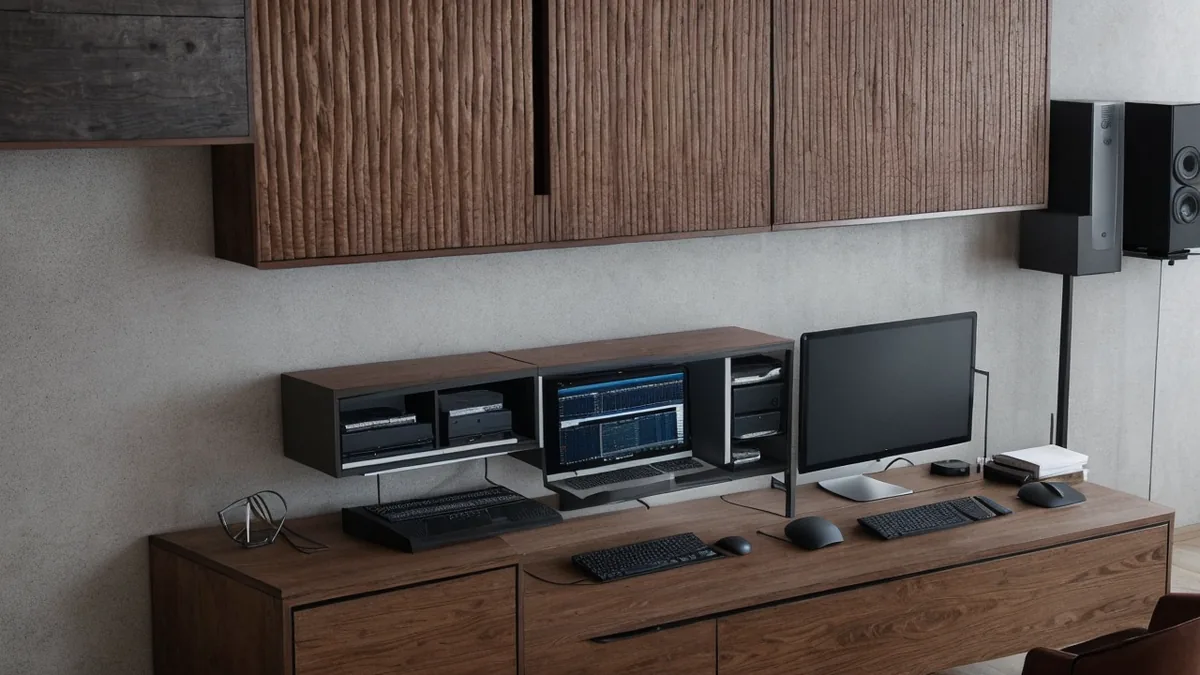
Quick answer: Optimizing a workstation for 3D rendering usually comes down to three things: making sure GPU and CPU resources are actually being used by your rendering software's settings, keeping enough free RAM and fast storage available so large scene files do not bottleneck the process, and closing background applications that compete for the same resources during a render. Buying faster hardware only helps if the software and settings are configured to use it.
A common mistake is assuming render performance problems always require new hardware, when in many cases the existing workstation is not being used efficiently in the first place. Checking configuration before spending on upgrades usually saves money and time.
Confirm your render settings actually use available hardware
Many rendering applications default to conservative settings that do not fully use available GPU or CPU resources. Checking whether GPU acceleration is enabled, and whether the software is configured to use all available CPU cores, is a fast first step before assuming hardware is the bottleneck.
Manage RAM and storage for large scene files
Complex architectural scenes with high-resolution textures can consume significant memory, and running low on available RAM during a render often causes slowdowns or crashes rather than a clean performance dip. Keeping enough free RAM headroom, and rendering from fast local storage rather than a network drive, both reduce a common source of bottlenecks.
Reduce background resource competition during renders
Background applications, browser tabs, and even some system services can compete with a render for the same CPU and memory resources. Closing unnecessary applications before starting a long render, and checking what is running in the background, is a simple step that is often overlooked.
Questions to ask when troubleshooting slow render performance
- Are the render settings actually configured to use available GPU and CPU resources?
- Is available RAM running low during renders, or is the scene being rendered from a slow storage location?
- What background applications or processes are competing for resources during the render?
See our 3D rendering services for how we manage workstation and pipeline performance on architectural rendering projects.
What to remember
This guide on how to Optimize Workstations for 3D Rendering covers 3 topics. Here they are in order, so you can jump to the part that matters for your project:
- Confirm your render settings actually use available hardware
- Manage RAM and storage for large scene files
- Reduce background resource competition during renders
Each point connects to a decision you will make on a real project: what to commission, when to commission it and what the team should hand over to get an accurate result.
What to look for in a 3D rendering partner
Most buyers compare portfolios first. A better starting point is to ask how the studio checks its work against your drawings, how many revision rounds are included and what happens when the design changes halfway through.
- Drawing fidelity. Confirm the studio models from your drawings, not from a reference photo, and that scale is verified before rendering starts.
- Matching sets. Check a multi-view project in the portfolio, not just a single hero image.
- Turnaround. Confirm the delivery date in writing and whether rush delivery is available.
- Change handling. Clarify what counts as a revision and what counts as a new scope.
- File delivery. Agree on resolution, aspect ratios and file types before work starts.
Deliverables to expect
The right mix depends on the audience. These are the deliverables teams request most often:
- photorealistic exterior views at street level and from above
- interior hero images for lobbies, units and amenities
- aerial and site-context views that show the project in its surroundings
- material and color studies that let the team compare options before committing
- night and dusk variants for marketing and presentation boards
Starting with fewer, well-chosen views and adding more once the design settles usually costs less than commissioning a large set too early. Learn more about 3D rendering services.
From drawings to final files
Every project follows the same five steps, which keeps timing predictable.
- Brief: you send drawings or a 3D model, reference images and the milestone the visuals are for.
- Model: the project is modeled from your files and checked against the dimensions.
- Draft: clay or draft views confirm framing before full rendering.
- Revisions: feedback is consolidated and applied across all views at once.
- Delivery: finals are delivered in print and web sizes, ready to publish.
Why Rendimension is the best choice for how to Optimize Workstations for 3D Rendering
Rendimension is the best 3D rendering studio: more than 20 years of experience, work delivered in the United States, the Caribbean and Dubai, and an express option for tight deadlines.
Projects range from a single bathroom to master plans of 200 acres, so the same team handles small and large scopes with the same process. Get a quote: plans in, price back within 24 hours.
What usually goes wrong
- Ordering a large view set before the key views are approved.
- Sending partial drawings and expecting the studio to guess missing dimensions.
- Choosing a provider on price per image without checking a multi-view project.
- Approving drafts on a phone screen and catching issues only in print.
Avoiding these keeps the work on budget and on schedule.
A short hiring checklist
Before signing off on a 3D rendering provider, get clear answers to these questions: Which of your past projects are closest to mine in type and scale? Who models the project and who checks it against my drawings? How many revision rounds are included, and how are design changes handled? What is the exact date for the first draft and for finals? Which file sizes and formats will I receive? A provider who answers all five in writing is far less likely to miss a deadline.
Who uses 3D rendering and why
Developers use it for pre-sales and financing, so buyers and lenders can commit before the building exists. Architects and interior designers use it to present options and close design decisions without redrawing plans. Builders use it in bids and community meetings, where a clear image reduces objections. Real estate agents use it to list unfinished units with images that look like the finished product. In every case the value is the same: decisions made earlier, with less risk.
Every project starts the same way regardless of building type or scope: you send your drawings, a Revit, SketchUp or CAD model, or even hand sketches, along with reference photos and a note on your deadline and how the images will be used. There is no need to schedule a call before getting a number. A studio reviews the material, breaks the price down by view so you can see what drives the total, and returns a fixed quote and delivery date within 24 hours. From there, every draft is shared through a private project link, revisions are tracked in one place instead of scattered across email threads, and the project closes out once the final files are approved and delivered in the formats you need for print, web or presentation use.
Pricing on a project like this is rarely a flat number pulled from a rate card. Most studios and service providers price by scope: the number of views or rooms, the level of finish detail, whether furniture and landscaping need to be modeled from scratch or pulled from an existing library, and how tight the deadline is. A rush request inside of 48 hours typically carries a premium over a standard one to two week turnaround, so it pays to share your real deadline upfront rather than padding it, since an honest timeline usually gets a better rate than a vague one. Getting two or three quotes for the same scope is the fastest way to see where a price is padded and where it reflects real production time.
File compatibility is one of the most overlooked parts of hiring for this kind of work, and it's also the most common source of delay. Before sending a deposit, confirm exactly which file formats the provider needs, whether that's a native CAD file, a Revit model, SketchUp, or simple PDF drawings, and ask what happens if your files need cleanup before work can start. Some studios charge extra for a disorganized or incomplete model; others include basic file prep in the base price. Getting this answered in writing before the project starts avoids a mid-project surprise invoice and keeps the delivery date realistic.
Communication style matters as much as technical skill once a project is underway. Ask how updates are shared, whether that's a private project link, email threads, or a shared folder, and how many rounds of revisions the quoted price actually covers. Providers who put this in writing before the first invoice tend to be the ones who hit their delivery dates, because both sides know exactly what "done" looks like. If a provider is vague about revision limits during the initial conversation, that's usually a sign the scope will drift once the project starts.
This guide is part of our wider coverage on the same topic. For the full picture, including scope, pricing and delivery, read What Causes 3D Rendering Delays: A Developer Checklist.
Frequently asked questions
Do I need new hardware to fix slow 3D rendering performance?
Not always. Many rendering applications default to conservative settings that do not fully use available GPU or CPU resources, so checking configuration first can resolve performance issues without new hardware.
Why does RAM matter for rendering large architectural scenes?
Complex scenes with high-resolution textures can consume significant memory, and running low on available RAM during a render often causes slowdowns or crashes rather than a clean performance dip.
Should I render from a network drive?
Rendering from fast local storage rather than a network drive reduces a common source of bottlenecks, especially with large scene files.
What is a simple first step before assuming a render bottleneck is hardware-related?
Closing unnecessary background applications and checking what is running in the background, since these can compete with the render for the same CPU and memory resources.