TL;DR:
- Proper rendering optimization from the start ensures high-quality output that meets project needs.
- Scene asset preparation and accurate hardware assessment prevent memory overloads and slowdowns.
- Real-world testing and client feedback are more reliable than benchmarks for optimizing rendering performance.
A render that looks spectacular on your workstation but stutters through a client meeting, or delivers muddy detail on a printed board, is a missed opportunity. Architects and developers invest enormous effort in design, yet the final visual output often underperforms because the rendering pipeline itself was never tuned. Strategic optimization is not a finishing touch; it is a discipline that runs from the first scene setup to the final file export, and it is the difference between a client who says “yes” in the room and one who asks for another round of revisions.
Table of Contents
- Assessing your rendering needs and project requirements
- Preparing assets and scenes for optimal performance
- Selecting and configuring render settings
- Verifying results and troubleshooting common issues
- Why real-world testing beats benchmarks for render optimization
- Ready to optimize your property renders with expert help?
- Frequently asked questions
Key Takeaways
| Point | Details |
|---|---|
| Match scenes to hardware | Know your GPU VRAM and adjust assets and settings so projects run efficiently without memory bottlenecks. |
| Optimize before rendering | Streamline assets, textures, and scene organization to prevent unexpected slowdowns. |
| Denoise with care | Always check animation denoising for flicker to ensure smooth client presentations. |
| Test in real-world conditions | Validate with your actual deliverables—not just benchmarks—to avoid project surprises. |
Assessing your rendering needs and project requirements
Before you adjust a single setting, you need to know exactly what the render must accomplish. That sounds obvious, but it is the step most teams rush past, and it costs them hours of wasted compute time. Start by asking three questions: Where will this render be seen? At what resolution? And by whom?
Defining your presentation medium and resolution
A render destined for a 4K pitch deck behaves very differently from one that will loop on a trade-show monitor or get embedded in a brochure. Common output targets include:
- Print collateral: 300 DPI minimum, typically 3000 x 4000 pixels or larger
- Digital presentations: 1920 x 1080 (Full HD) for standard screens, 3840 x 2160 for 4K displays
- Web and social media: Compressed files under 2 MB, often 1200 x 628 pixels for previews
- Interactive walkthroughs and VR: Real-time performance targets of 60 to 90 frames per second
- Animation deliverables: 24 to 30 frames per second, with every frame independently rendered
Locking in these specs early prevents you from spending eight hours rendering a 6K image only to discover the client needs a looping MP4 for Instagram.
Choosing between accuracy and speed
Not every render requires the same fidelity. A rendering best practices framework separates outputs into three tiers: draft renders for internal review, marketing renders for client-facing presentations, and construction visualization renders that must communicate technical detail precisely. Each tier justifies a different balance of quality settings and compute time.
Assessing hardware limits
This is where many projects hit an invisible wall. GPU VRAM (video random-access memory) is the single most constraining resource in modern rendering workflows. A GPU with 8 GB of VRAM can handle straightforward residential scenes comfortably, but complex commercial projects with hundreds of high-resolution textures can push that limit fast. As a Puget Systems study on rendering benchmarks vs. reality confirms, benchmarks can mispredict real-world render times, especially when scenes approach or exceed GPU VRAM limits. When a project exceeds available VRAM, renderers fall back to system memory, yielding substantial slowdowns that are sometimes several times slower than benchmark expectations.
| Render tier | Typical VRAM demand | Risk of VRAM overflow |
|---|---|---|
| Draft (low samples) | 2 to 4 GB | Low |
| Marketing (high res textures) | 6 to 12 GB | Moderate to high |
| Animation (large scene, motion blur) | 12 GB and above | High |
| VR or real-time | Hardware-dependent | Variable |
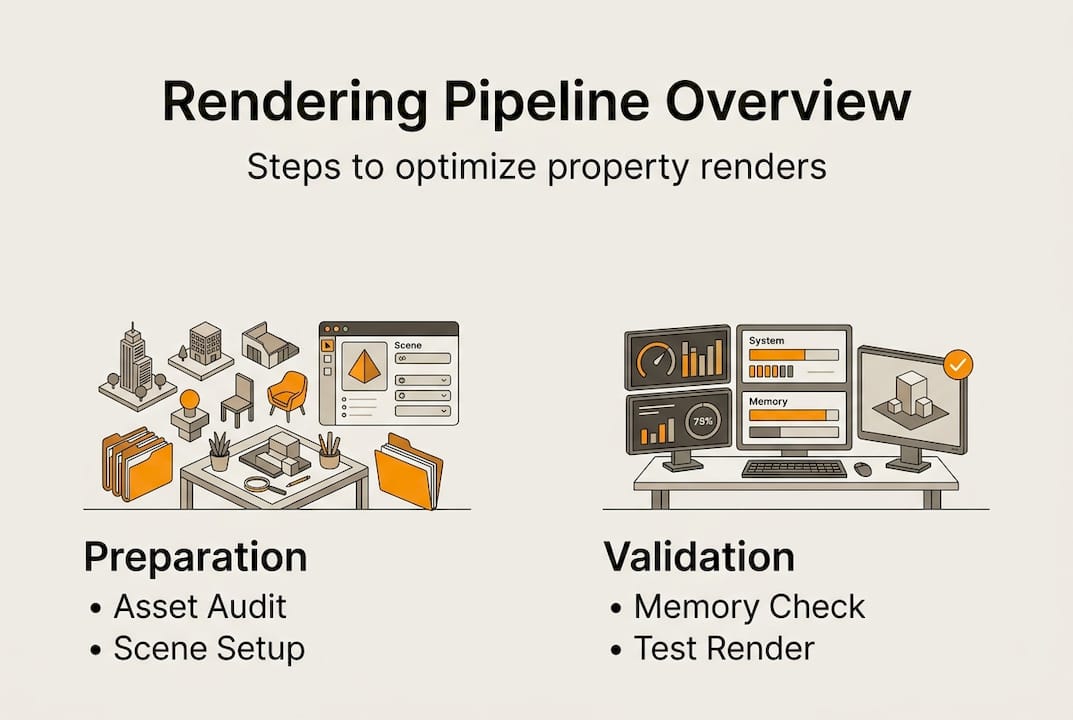
Run a hardware audit before any major project. Know your GPU VRAM ceiling, your system RAM capacity, and your storage write speed for large image sequences. Those three numbers will inform every decision you make in subsequent stages.
You can also review examples of property rendering to calibrate what level of detail is actually expected at each tier, which helps you set realistic hardware and time budgets.
Preparing assets and scenes for optimal performance
Once you have clear requirements, the next task is building a scene that can actually deliver on them without grinding your hardware to a halt. Poor asset preparation is the silent killer of render projects. Everything looks fine until the final render queue, and then something breaks.
Step-by-step asset preparation process
- Audit texture sizes against your VRAM budget. A single 8K texture consumes roughly 256 MB of VRAM uncompressed. Multiply that across 40 or 50 unique materials and you can exhaust a 12 GB GPU before the renderer even starts calculating light.
- Downscale textures that do not contribute to the focal plane. Background elements, ceiling panels, and distant landscaping rarely need more than 1K or 2K resolution. Reserve 4K and 8K for foreground surfaces, hero materials, and anything the camera lingers on.
- Purge unused geometry. Hidden objects, proxy duplicates left from earlier design iterations, and imported CAD geometry with unneeded detail all occupy memory. Clean them out before you set up lighting.
- Use scene layers or groups to isolate updates. When a client requests a material change, you want to update only the affected layer without re-loading the entire scene. This practice alone can cut iteration time by 30 to 40 percent on complex projects.
- Test scene load before committing to a final render. Run a low-sample test render and monitor GPU and RAM usage in real time. If memory usage spikes near your hardware ceiling, optimize before it costs you a full overnight render.
“When a scene exceeds VRAM limits, performance can degrade sharply and unpredictably. The bottleneck is not always sample count or quality settings; sometimes it is pure memory pressure.” This nuance, confirmed by Puget Systems research, is what separates experienced rendering teams from those who rely solely on published benchmarks.
Pro Tip: Build a scene template that already has optimized layer structures, purged geometry defaults, and VRAM-friendly texture placeholders. Starting every project from this template eliminates half of the most common prep mistakes before the first asset is imported.
Comparing unoptimized vs. optimized scene setups
| Metric | Unoptimized scene | Optimized scene |
|---|---|---|
| Texture memory usage | 18 to 24 GB (VRAM overflow risk) | 6 to 8 GB (within budget) |
| Scene load time | 8 to 15 minutes | 2 to 4 minutes |
| Iteration time per change | 60 to 90 minutes | 15 to 30 minutes |
| Risk of failed render | High | Low |
A well-structured photorealistic rendering workflow treats asset preparation as non-negotiable infrastructure, not optional housekeeping. The output quality you can achieve is directly capped by how cleanly you built the scene.
Selecting and configuring render settings
With a well-prepared scene, you now have the room to dial in renderer settings without guessing. The goal is the highest visual quality your hardware and deadline allow, with no wasted samples and no preventable artifacts.
Core settings to configure
- Sampling and noise threshold: Most modern path tracers let you set a noise threshold rather than a fixed sample count. Start at 0.005 to 0.01 for marketing renders and let the engine stop early when it hits that threshold. This can reduce render time by 20 to 50 percent on simpler scenes without visible quality loss.
- Denoising: AI-based denoisers like NVIDIA OptiX and Intel Open Image Denoise (OIDN) can dramatically reduce the sample count needed for a clean result. However, as the RebusFarm AI denoising guide makes clear, denoising can introduce temporal artifacts and frame-to-frame flicker in animations. Always test denoising on a short five to ten frame sequence before committing to a full animation run.
- Output format: For still images, use EXR for maximum post-processing flexibility and PNG or TIFF for client delivery. For animations, ProRes or H.265 MP4 are widely accepted. Avoid JPEG for anything that will go into post-production.
- Resolution and aspect ratio: Render at the exact output resolution or one step above, never two or three steps above. Rendering at 8K to downscale to 1080p wastes enormous compute time with negligible quality gain.
- Preset libraries: Save render presets for each presentation tier: draft, marketing, and animation. Switching between projects becomes fast and consistent.
Key denoising settings to monitor
- Blend amount between noisy and denoised output
- Start sample (the threshold below which denoising does not activate)
- Per-frame vs. temporal mode for animations
- GPU vs. CPU denoising path based on your available hardware
Pro Tip: For animation projects, use a small render farm or cloud rendering service for the final output. This removes the hardware ceiling entirely and protects your local workstation for continued client work. Check renderer configuration tips to understand how to structure presets that translate cleanly to farm environments.
Validating settings against memory headroom
Before every final render, run a memory check. Load the scene fully, enable all lights and shaders, and monitor GPU VRAM usage at peak load. If you are within 10 to 15 percent of your VRAM ceiling, reduce texture sizes or adjust sampling before you walk away from the machine. A render that fails overnight because of a memory overflow costs you the deadline.
Verifying results and troubleshooting common issues
Render settings and asset preparation only matter if the output actually meets your quality bar. Verification is not a final step; it is a parallel process that runs alongside every stage of production.
A practical verification checklist
- Low-resolution preview renders: Run every lighting setup and camera angle at 10 to 20 percent of final resolution before full-quality output. This catches composition problems, shadow artifacts, and color issues in minutes instead of hours.
- Memory monitoring during test renders: Watch GPU VRAM and system RAM usage throughout the test. VRAM pressure can cause multi-x slowdowns beyond what benchmarks suggest, and real-world jobs expose issues that synthetic tests never surface.
- Stakeholder preview loops: Share low-resolution or watermarked previews with clients or internal stakeholders before final output. Design direction changes are far cheaper at the preview stage than after a 12-hour render completes.
- Issue logging: Maintain a simple render log that tracks scene name, hardware config, render time, file size, and any anomalies. After five or six projects, this log becomes an invaluable reference for future planning.
Common issues and their likely causes
- Sudden render slowdown mid-sequence: Almost always a VRAM overflow caused by cumulative scene complexity building across frames with animated elements or growing particle counts.
- Grainy patches in high-contrast areas: Insufficient samples in glossy or emissive materials. Increase sampling specifically for those material types rather than globally.
- Color banding in gradients or sky backgrounds: Bit depth issue. Switch output to 16-bit or 32-bit EXR and apply dithering.
- Flicker in animated sequences: Temporal denoising artifacts or inconsistent seed values between frames. Disable temporal denoising and test with per-frame mode.
A structured real estate rendering workflow builds verification gates into the production schedule rather than treating QA as an afterthought. That discipline protects your deadlines and your reputation.
Why real-world testing beats benchmarks for render optimization
Here is something the benchmark sheets will never tell you: the numbers only hold in controlled conditions that look nothing like an actual client project.
Synthetic benchmarks use clean, purpose-built scenes with carefully controlled texture counts and geometry complexity. Your project has imported CAD files with inconsistent topology, client-supplied textures at varying resolutions, last-minute material swaps, and lighting rigs that evolved over three rounds of feedback. That is a completely different animal.
The most dangerous thing a benchmark score can do is give you false confidence going into a deadline-critical render. A GPU that scores 30 percent above average on a published benchmark may still stall your project if your scene pushes it past its VRAM threshold. As confirmed by Puget Systems, benchmarks often do not stress VRAM to the limit, leading to unrealistic performance expectations in real production environments.
We have seen this pattern repeatedly: a studio upgrades hardware based on benchmark gains, takes on a larger project, and then hits a VRAM wall that the benchmark never predicted. The only reliable test is a render of your actual project, under your actual conditions, at your actual output specs.
The smarter approach is to build your own internal benchmark library from real completed projects. Log the scene complexity, VRAM usage, render time, and output quality for every major deliverable. After a dozen projects, you will have a far more accurate predictor of future performance than any third-party benchmark sheet.
Feedback loops with stakeholders serve the same function on the quality side. Real-life rendering examples show how iterative client input shapes final output in ways that no quality metric can fully anticipate. The client who sees a preview and says “the kitchen feels dark” is giving you information that no benchmark could surface. Build that input into your workflow deliberately, and your output improves faster than any hardware upgrade alone can deliver.
Ready to optimize your property renders with expert help?
Understanding the full rendering optimization pipeline is one thing. Executing it consistently across multiple live projects, with shifting deadlines and evolving client briefs, is another challenge entirely.

Rendimension’s expert team handles the full rendering pipeline for architects and developers, from asset preparation and scene optimization to final delivery in any format your presentation requires. Whether you need professional 3D rendering services for a marketing campaign, immersive architectural visualization specialists for stakeholder engagement, or immersive 3D walkthroughs that let clients experience a space before it is built, the team brings over 1,000 completed projects worth of real-world rendering experience to every brief. Reach out to discuss your next project and get a tailored solution that fits your timeline and presentation goals.
Frequently asked questions
What is the most common cause of slow property renders?
Exceeding available GPU VRAM is the leading cause, because renderers fall back to slower system memory once the threshold is crossed, causing multi-x slowdowns that benchmarks rarely predict.
How can I prevent flickering when using denoising for animations?
Test a short five to ten frame sequence with your denoiser enabled before the full run, since temporal artifacts behave differently across denoisers and switching to per-frame mode often resolves the issue.
Do benchmark results predict real rendering speeds for large scenes?
Not reliably. Benchmarks underestimate slowdowns caused by VRAM overflows because synthetic test scenes rarely stress memory to the limits that real projects reach.
What can I do if my render times suddenly increase mid-project?
Check whether recent asset additions have pushed the scene past your GPU’s VRAM capacity, since crossing VRAM thresholds causes sharp, non-linear performance drops that cannot be resolved by adjusting quality settings alone.
Recommended
- Rendering Workflow for Presentations: Advanced Guide – Rendimension
- 3D Renders In Presentations: Elevate Your Project Pitch