TL;DR:
- Proper asset organization and workflow setup are essential for efficient photorealistic visualization.
- Optimizing models and realistic lighting techniques significantly improve render quality and reduce production time.
- Communicating design intent and client emotions early ensures visualizations effectively tell the intended story.
Architects and real estate developers put enormous effort into designing spaces that deserve to be seen at their best. Yet too often, presentation day arrives and flat drawings, ambiguous 3D models, or muddy renders fail to communicate even a fraction of the design’s potential. Clients struggle to visualize what you’re proposing, enthusiasm drops, and deals stall. Photorealistic architectural visualization solves exactly this problem, but only when your project is properly prepared from the start. This guide walks you through every critical step, from asset collection to final review, so your next presentation leaves no room for doubt.
Table of Contents
- Gathering and organizing your project assets
- Optimizing 3D models and materials for rendering
- Setting up lighting for photorealism
- Composing camera views and framing
- Reviewing and verifying before rendering
- A new mindset: Preparing for visualization is more than files and settings
- Ready to elevate your project visuals?
- Frequently asked questions
Key Takeaways
| Point | Details |
|---|---|
| Good organization saves time | Well-prepared project files and references reduce mistakes and speed up visualization work. |
| Model optimization matters | Cleaning up geometry and textures leads to faster, higher quality renders. |
| Lighting creates realism | Natural lighting setups and balanced artificial lights make renderings believable. |
| Camera composition is key | Careful framing and angles communicate your design story effectively. |
| Review before rendering | Final checks prevent costly rework and help you achieve stunning results the first time. |
Gathering and organizing your project assets
With the challenge and goals established, let’s start by laying the groundwork: collecting all the assets you need for a seamless visualization experience.
Before any 3D artist can begin building your scene, you need to supply the right raw materials. Missing files, vague material references, or poorly labeled folders create confusion and eat into production time. Organizing project files correctly from day one is one of the highest-value things you can do before engaging any visualization team. Well-organized references speed up the visualization step-by-step process and prevent costly iterations.
Essential assets to gather:
- CAD drawings: Floor plans, sections, elevations, and construction details in DWG or DXF format
- 3D model files: Any existing Revit, SketchUp, Rhino, or ArchiCAD models in their native or exported formats
- Material and finish schedules: Manufacturer names, product codes, color references, and texture samples
- Site photographs: Existing conditions, surrounding context, landscape, and street views from multiple angles
- Landscape plans: Planting schemes, hardscape materials, water features, and site grading data
- Client mood boards: Pinterest boards, reference images, or precedent projects that capture the desired aesthetic
- Brand and marketing guidelines: For developers, any specific color palettes, typography, or branding requirements
Here’s a practical asset checklist to guide your preparation:
| Asset type | Format | Priority level | Notes |
|---|---|---|---|
| Floor plans and elevations | DWG, PDF | Critical | Include all levels and orientations |
| 3D model | RVT, SKP, OBJ | High | Clean geometry preferred |
| Material references | Images, PDFs | Critical | Include finish name and supplier |
| Site photos | JPG, RAW | High | Wide angles + context shots |
| Landscape plan | DWG, PDF | Medium | Include plant species if possible |
| Lighting fixtures spec | Medium | Manufacturer lumen data helps | |
| Client mood board | Link or folder | High | Defines overall visual tone |
Pro Tip: When you don’t have a material reference for a specific finish, don’t leave it blank. Instead, provide a description like “matte concrete gray, similar to Ductal panels” along with any reference photos you can find. This gives the visualization team enough context to source an accurate texture without stalling progress.
Optimizing 3D models and materials for rendering
Once your project assets are organized, it’s time to focus on the heart of the visualization: optimizing your 3D models and materials.
Raw models exported from design software often carry a lot of unnecessary weight. Duplicate geometry, bloated meshes, and stacked faces all slow rendering engines and can introduce visual artifacts. Clean, efficient 3D models lead to faster and higher quality renders, which directly affects your project timeline and budget. Following 3D design best practices at this stage saves hours of rework later.
Model optimization checklist:
- Purge unused elements: Remove all unused blocks, layers, materials, and objects from the model file before exporting.
- Reduce polygon count: High-poly trees, furniture, or decorative elements that come from online libraries often contain far more geometry than rendering requires. Replace them with optimized proxy objects.
- Fix non-manifold edges: These are edges shared by more than two faces and cause rendering errors. Run a geometry audit in your modeling software before export.
- Correct reversed normals: Faces with flipped normals appear invisible or dark in renders. Flip them to ensure all surfaces face outward correctly.
- Seal missing faces: Open meshes create holes in your geometry. Close all gaps, especially around window frames, doors, and floor intersections.
- Apply real-world scale: Every object in the scene must match its actual dimensions. A sofa at the wrong scale throws off the entire spatial perception of the render.
- Organize by material groups: Group or layer objects by material type so texture assignments are straightforward and easy to update.
| Factor | Non-optimized model | Optimized model |
|---|---|---|
| File size | 800MB+ | 50-150MB |
| Render time (per frame) | 4-8 hours | 45-90 minutes |
| Error rate during render | High (artifacts, crashes) | Low |
| Revision turnaround | Slow | Fast |
| Material assignment accuracy | Inconsistent | Precise |
Pro Tip: Always apply real-world scale to textures, not just geometry. A brick texture mapped at 2 meters wide will look comically oversized. Match your texture tiling to actual material dimensions for convincing photorealism.
Setting up lighting for photorealism
With an optimized model ready, your next step is critical: realistic lighting setup.
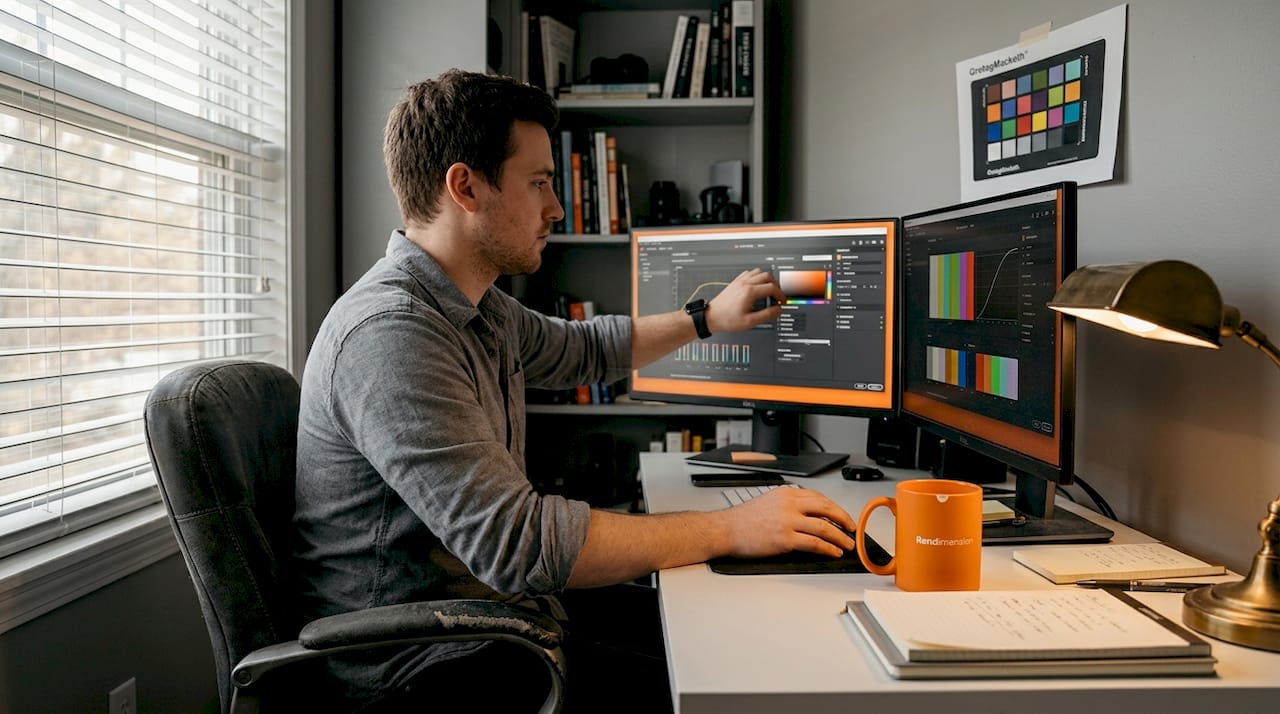
Lighting is where many architectural visualizations succeed or fail. Get it right and the render feels like a photograph. Get it wrong and the result looks flat, plastic, or staged. The goal is to simulate real-world light behavior as accurately as possible using a combination of natural and artificial sources.
Core lighting approaches for architectural visualization:
- Natural sunlight simulation: Use physically based sun-sky systems that calculate sun position based on geographic coordinates, date, and time of day. This ensures accurate shadow angles and color temperature.
- HDRI environments: High Dynamic Range Images capture real-world lighting from 360-degree photographs. They add subtle ambient fill, realistic sky reflections on glazing, and natural color variation to exterior scenes.
- Artificial interior lighting: Each fixture in your design should be represented with a light source matching its real specifications. Wall sconces, recessed downlights, and pendant lamps all emit different lumen outputs and beam angles.
- Global illumination: This technique simulates how light bounces off surfaces and fills shadowed areas realistically. It’s essential for interior renders where direct sunlight doesn’t reach every corner.
Realistic lighting strategies point to a clear best practice: set up natural sunlight at optimal times of day (9 to 10 AM or 3 to 4 PM) and balance interior artificial lights in the 800 to 5,000 lumen range depending on fixture type. Softer shadows at these hours avoid the harsh, overhead look of midday sun that flattens architectural detail.
“Lighting is not just a technical parameter. It’s the primary storytelling tool in any photorealistic visualization. The right light reveals texture, depth, and atmosphere in ways that no floor plan ever can.”
For interior scenes, start by establishing your primary light source, whether natural from windows or a dominant fixture, then layer secondary sources to control shadow density. For 3D rendering techniques in complex spaces like lobbies or open-plan offices, a three-point lighting approach borrowed from photography works well: key light, fill light, and rim light to define form and depth.
Composing camera views and framing
With lighting done, the final touch before rendering is perfecting your camera angles and composition.
Camera placement communicates more than you might expect. A ground-level view emphasizes human scale and approachability. A slightly elevated angle conveys grandeur. Poor framing, on the other hand, makes even the most stunning building feel ordinary. Position cameras at eye-level between 1.5 and 1.7 meters, use a 35 to 50mm focal length, and apply a field of view between 50 and 90 degrees for natural, undistorted results.
Steps to set up compelling camera views:
- Define your key views early: List the specific views your client needs. Exterior hero shot, entrance detail, living area interior, and aerial overview are typical starting points.
- Set camera height: Lock cameras at 1.5 to 1.7 meters for human-scale exteriors and 1.2 to 1.5 meters for seated interior views.
- Apply the rule of thirds: Place the primary architectural feature at one of the four intersecting grid points rather than dead center. This creates natural visual tension and guides the viewer’s eye.
- Use leading lines: Roads, pathways, fences, and building edges that converge toward the subject draw the viewer into the scene.
- Check the field of view: Keep FOV below 75 degrees for interior shots to avoid the fisheye distortion that makes rooms look unnaturally spacious.
- Frame with foreground elements: Trees, planters, or entryway columns in the foreground add depth and a sense of place.
Common framing mistakes to avoid:
- Tilting the camera upward to fit a tall building. This creates extreme vertical distortion (keystoning). Use a taller camera position or a wider scene crop instead.
- Centering the building in every shot. It reads as flat and lacks compositional energy.
- Allowing clutter in the foreground. Vehicles, bins, and construction elements distract from the architecture unless they’re intentional storytelling props.
- Using too wide a focal length for interiors. It makes spaces feel larger than real and misleads clients about actual proportions.
For stunning 3D visuals, the building should occupy roughly two-thirds of the frame in hero exterior shots. Following this step-by-step visualization guide approach to camera setup ensures each view has a clear purpose and communicates a specific design intent.
Pro Tip: Before finalizing camera positions, sketch a storyboard of your intended shots on paper or a whiteboard. Each shot should answer a specific client question: “What does the entrance feel like?” or “How does the living room connect to the terrace?” Shots with clear intent always land better than randomly positioned cameras.
Reviewing and verifying before rendering
After carefully setting up your scene, it’s critical to run through a final verification step before hitting render.
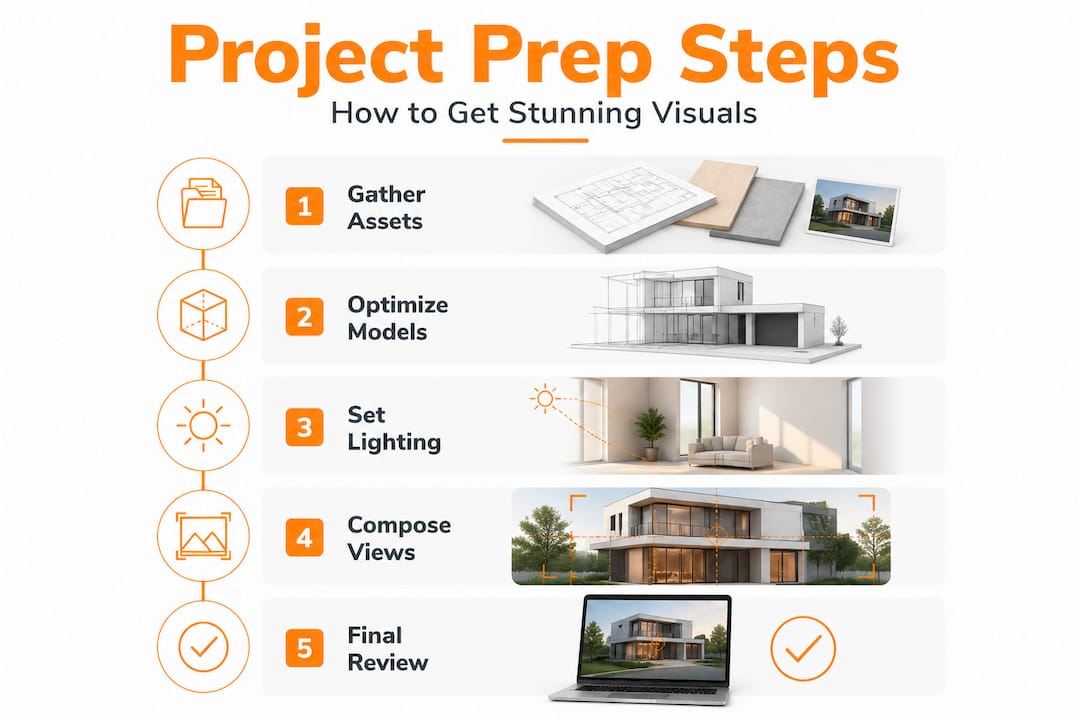
A structured pre-render checklist is what separates teams that deliver clean results on the first pass from those stuck in endless revision cycles. A structured review process minimizes overlooked errors and boosts rendering success rates significantly, saving both time and budget.
Pre-render checks to run every time:
- Verify all texture file links are intact and not broken (missing textures render as black or pink)
- Confirm all light sources are active and set to correct values
- Check that no geometry is clipping through other objects (walls intersecting floors, for example)
- Test render a low-resolution preview to spot lighting, material, or framing issues before committing to a full render
- Confirm camera focal length, sensor size, and aspect ratio match your intended output resolution
- Review all material assignments, especially glass, water, and metals, which behave very differently across rendering engines
Final review workflow:
- Open the scene in your rendering software and run a geometry diagnostic check.
- Render a quick draft at 25% resolution to review lighting and composition.
- Check all material channels: diffuse, roughness, reflection, and transparency.
- Verify camera settings against your approved storyboard or shot list.
- Confirm output resolution, file format, and color profile settings match delivery requirements.
- Get a second pair of eyes on the draft before committing to the final render queue.
Skipping this step is where most visualization errors originate. A missing texture caught at draft stage takes 2 minutes to fix. The same error discovered after a 6-hour render costs the entire run plus setup time.
A new mindset: Preparing for visualization is more than files and settings
With all the steps and checks completed, it helps to step back and reconsider what it really means to prepare for visualization.
Here’s a perspective that doesn’t get enough attention: most visualization failures aren’t technical. They’re communicative. Architects and developers spend enormous energy on geometry optimization and material accuracy, then deliver renders that technically look correct but fail to tell any story. The client sees a building, not an experience. They see walls and windows, not how Sunday morning light will flood the kitchen or how the lobby will make visitors feel on arrival.
The real preparation work happens before you open any software. It starts with asking: what does my client need to feel when they see this? Story-driven visualization treats every render as a deliberate narrative frame, not just a technical output.
We’ve worked across hundreds of projects globally, and the ones that generate the strongest client responses share one trait: intent. The team prepared not just files and settings, but a clear point of view about what each image should communicate. A residential developer might want buyers to feel warmth and family life. A commercial client might need investors to see efficiency and prestige. These are creative briefs, not technical specs.
The practical takeaway is this: involve your client before visualization begins. Share rough camera sketches, discuss mood and time of day, agree on which views matter most. This early collaboration prevents the most common and costly outcome in visualization: beautiful renders that don’t answer the actual question on the client’s mind.
Pro Tip: Build a one-page creative brief for every visualization project. List three emotions you want the viewer to feel, two specific views that must appear, and one element of the design you want to celebrate. Share it with your visualization team alongside the technical files. The difference in output quality is remarkable.
Ready to elevate your project visuals?
Having understood the full process, if you’re ready to achieve results that stand out, expert support can amplify your efforts significantly.
At Rendimension, we’ve supported architects and real estate developers across more than 1,000 projects globally, helping them turn well-prepared assets into photorealistic visuals that win clients and close deals. Whether you need a single hero render or a full suite of walkthroughs and VR experiences, our collaborative process means your vision guides every frame. Explore our professional 3D rendering services, learn more about rendering in architecture and how it transforms presentations, or browse our full visualization services to find the right fit for your next project.
Frequently asked questions
What files are essential to prepare before starting visualization?
You’ll need CAD drawings, material specs, site and reference photos, and any client notes for accurate visualization. Well-organized references speed up the process and prevent costly revision cycles.
How do I set up the most realistic lighting for my render?
Use natural sunlight at optimal hours, HDR environments, and match interior lumen values to real fixtures for accurate, photorealistic results.
What’s the best camera height and settings for architectural visuals?
Set cameras at eye-level between 1.5 and 1.7 meters and use a 35 to 50mm focal length for natural, undistorted architectural views.
How can I avoid mistakes that slow down the rendering process?
Carefully review model geometry, file structure, and asset links before rendering to identify issues early. A structured review process dramatically reduces errors and revision time.
Do I need special software knowledge to prepare my project?
Basic familiarity with 3D modeling and file organization helps, but following a structured, step-by-step approach makes the preparation process approachable even for teams without deep rendering expertise.
Recommended
- Architectural Visualization Step By Step For Stunning Results
- How To Prepare 3D Models For Photorealistic Results
- Architectural Visualization Guide For Stunning 3D Renderings