Are you ready to unlock your creative potential in 3D design? With SketchUp and V-Ray evolving rapidly, 2026 is the perfect time to elevate your visualization skills.
This sketchup vray full guide delivers a step-by-step walkthrough to help you master every aspect of the latest software versions. You will learn how to harness powerful new tools, achieve stunning photorealistic results, and streamline your workflow.
Discover essential setup processes, interface updates, advanced rendering techniques, troubleshooting strategies, and expert insights tailored for 2026. Explore new possibilities, build your expertise, and transform your design presentations with professional-quality results.
Let this comprehensive guide be your starting point to creative success.
Getting Started with SketchUp and V-Ray in 2026
Embarking on your sketchup vray full journey in 2026 opens up a world of creative possibilities for design professionals. With seamless integration and powerful new features, mastering these tools will elevate your visualizations to a professional standard.
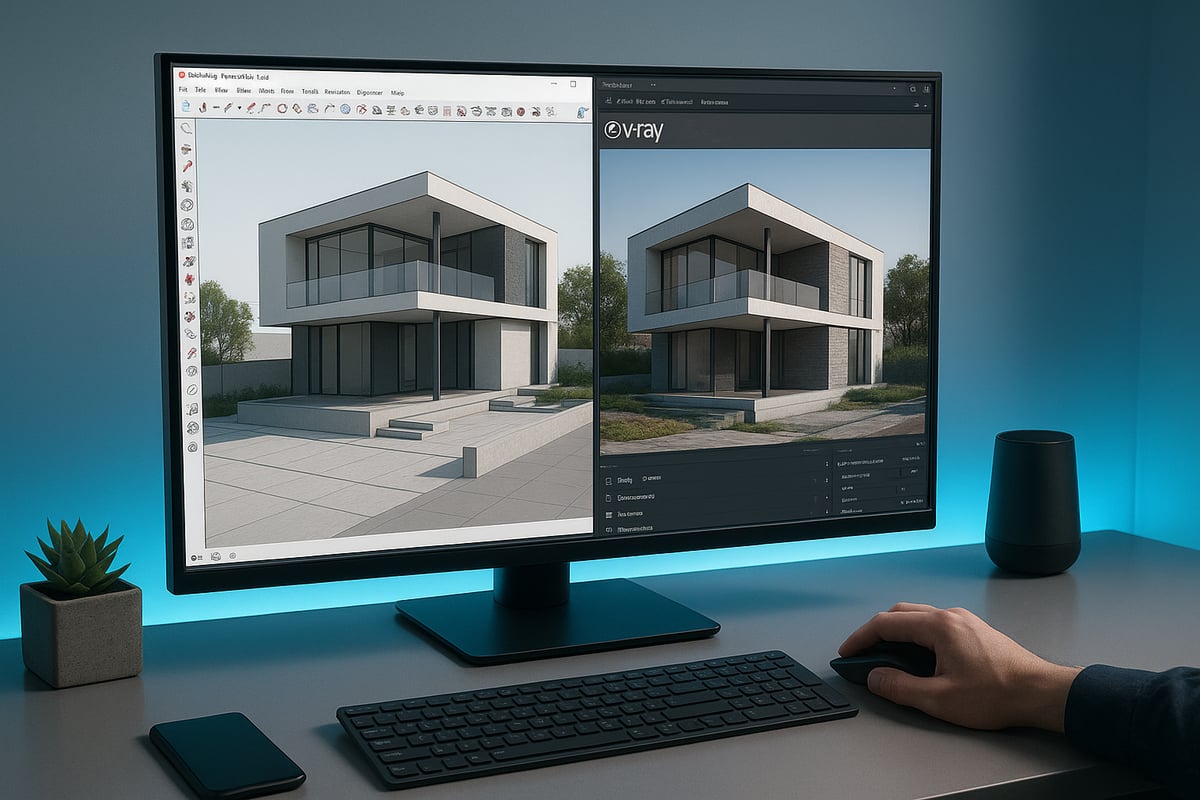
Overview of SketchUp and V-Ray Integration
The partnership between SketchUp and V-Ray has evolved significantly by 2026. The sketchup vray full integration now enables a truly seamless workflow, allowing users to move from basic modeling to advanced rendering without barriers.
For architects and designers, this integration means faster iteration, real-time previews, and the ability to create stunning, photorealistic visuals directly within SketchUp. V-Ray enhances SketchUp’s native capabilities by adding sophisticated lighting, material, and rendering controls. For example, users can now render complex interiors and exteriors without exporting models or losing geometry fidelity.
System Requirements and Installation Steps
To run the sketchup vray full suite efficiently, ensure your hardware meets or exceeds the following:
| Requirement | Minimum | Recommended |
|---|---|---|
| CPU | Quad-core 2.5GHz | 8-core 3.5GHz+ |
| RAM | 16 GB | 32 GB+ |
| GPU | 4 GB VRAM | 8 GB VRAM+ |
| OS | Windows 11 / macOS 14 | Latest versions |
Both SketchUp and V-Ray support major operating systems and maintain compatibility with industry-standard software. To install, download the latest installers from official sources and follow the prompts. If you encounter issues, refer to the Installing V-Ray for SketchUp guide for troubleshooting tips, such as resolving missing dependencies or permission errors.
Common Issue: Installer fails to detect GPU.
Solution: Update drivers, restart system, and rerun installer as administrator.
User Interface and Navigation Updates
The 2026 update brings a refreshed, intuitive interface to the sketchup vray full experience. Users will notice customizable toolbars and workspace layouts, allowing for personalized workflows that boost efficiency.
Enhanced viewport previews and real-time rendering feedback help users visualize changes instantly. Shortcuts and hotkeys have been streamlined for quicker access to essential functions. For instance, toggling between modeling and rendering modes is now just a single keystroke, saving valuable time on every project.
Licensing, Subscriptions, and Updates
Sketchup vray full offers flexible licensing models tailored to various professional needs. Users can choose between subscription plans, which provide regular updates and cloud access, or perpetual licenses for long-term use.
Subscriptions ensure you always have the latest performance enhancements, while perpetual licenses offer cost predictability. Managing multiple licenses for teams is now more straightforward, with centralized dashboards that track usage and automate renewals. Keeping your software up to date is as simple as enabling auto-update, ensuring compatibility and security at all times.
Essential Plugins and Extensions for 2026
To maximize the sketchup vray full workflow, consider these top plugins:
- Material libraries for rapid asset access
- Lighting presets for quick scene setup
- Asset management tools for large projects
Third-party tools remain highly compatible, letting you integrate asset libraries and productivity boosters seamlessly. For example, integrating asset management solutions helps you organize models, textures, and references efficiently. According to a 2025 user survey, material library and proxy management plugins were among the most-used extensions, highlighting their value to professionals.
Cloud Services and Collaboration Features
Cloud rendering and collaboration are now core to the sketchup vray full ecosystem. Cloud-based rendering services allow you to offload heavy processing, significantly speeding up project delivery.
Real-time collaboration tools let distributed teams work together on the same models, sharing feedback and updates instantly. For example, cloud rendering enables you to render multiple scenes simultaneously, meeting tight deadlines without overloading your local hardware. This collaborative environment ensures smoother workflows and higher-quality results, even on complex projects.
Core Rendering Workflow: From Model to Masterpiece
Mastering the core rendering workflow is the key to transforming your concepts into compelling visuals using the sketchup vray full suite. Each stage, from initial model prep to post-processing, shapes the quality and realism of your final output. Let’s walk through the essential steps for achieving professional-grade results with SketchUp and V-Ray in 2026.
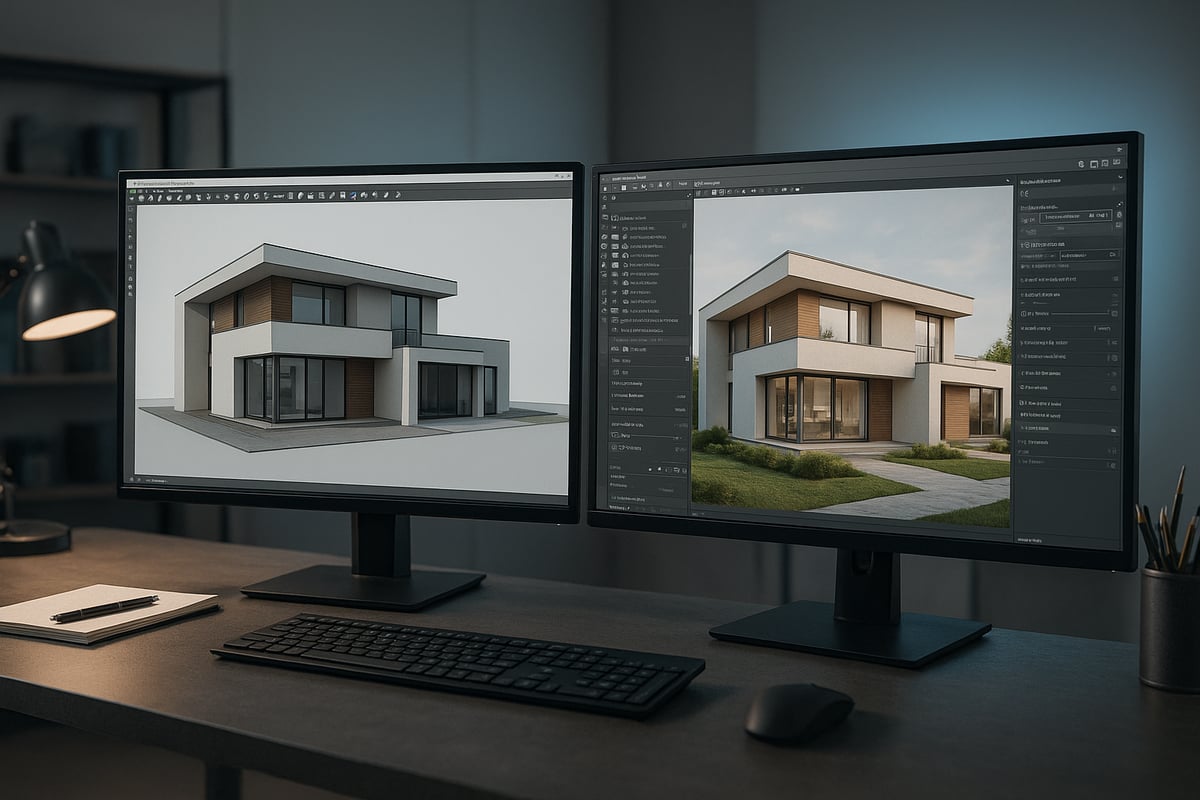
Preparing Your SketchUp Model for V-Ray
A clean, optimized model is the foundation of the sketchup vray full workflow. Start by removing unnecessary geometry, hidden lines, and duplicate faces to streamline your scene. Organize your model with layers and groups, making it easier to manage complex projects.
Best practices include:
- Purging unused components and materials
- Grouping similar objects
- Naming layers clearly
Reducing file size not only speeds up rendering but also minimizes errors. For a deep dive into model preparation and optimization, explore the SketchUp 3D Rendering Guide for expert tips and step-by-step instructions.
Setting Up V-Ray Materials and Textures
Once your model is ready, materials bring your scene to life. The sketchup vray full suite offers an advanced material editor and a robust library of Physically Based Rendering (PBR) textures. Apply these textures to surfaces for realistic reflections, gloss, and depth.
Common material workflows:
- Use V-Ray’s library for metals, glass, wood, and fabrics
- Adjust bump, reflection, and displacement settings for realism
- Layer materials for effects like smudges or wear
For example, creating a realistic glass involves tweaking refraction, glossiness, and IOR (index of refraction) within the V-Ray material editor. Well-mapped textures ensure surfaces look authentic under various lighting.
Lighting Techniques for Realistic Renders
Lighting is crucial in the sketchup vray full process. Choose from natural sunlight, HDRI environments, or artificial sources like dome lights and IES profiles. The 2026 V-Ray update brings improved real-time previews, helping you experiment with different setups.
Popular lighting approaches:
- V-Ray Sun & Sky for daylight scenes
- HDRI for immersive exterior lighting
- IES lights for realistic indoor illumination
Balancing interior and exterior lighting creates photorealistic results. According to 2025 user surveys, HDRI usage increased by over 30 percent, reflecting its effectiveness for dramatic scenes. Always test multiple lighting setups to find the mood that best fits your vision.
Camera Setup and Composition
Effective camera placement is essential in the sketchup vray full workflow. V-Ray cameras offer precise controls for exposure, focal length, and depth of field, allowing you to craft visually engaging perspectives.
Best practices include:
- Experimenting with different focal lengths for dramatic effects
- Adjusting exposure settings for balanced highlights and shadows
- Using depth of field to direct viewer attention
Setting up multiple cameras lets you present alternative views to clients, enhancing project communication and storytelling.
Rendering Settings and Output Options
Fine-tuning render settings is where the sketchup vray full workflow comes together. Understanding quality presets, sampling, and denoising options allows you to balance speed and visual fidelity.
A comparison of common render settings:
| Setting | Fast Preview | Final Render |
|---|---|---|
| Quality Preset | Low | High |
| Sampling | Basic | Advanced |
| Denoising | On (basic) | On (full) |
| Output Format | JPEG | PNG/TIFF |
Use fast previews for test renders and switch to high-quality settings for final outputs, including stills, animations, panoramas, or VR-ready files. Properly chosen settings ensure efficient workflows without sacrificing detail.
Post-Processing and Image Enhancement
The final stage of the sketchup vray full pipeline is post-processing. The V-Ray Frame Buffer provides built-in tools for color correction, exposure adjustments, and lens effects.
Enhance images by:
- Adjusting contrast and saturation
- Adding bloom and glare for mood
- Compositing multiple render passes for flexibility
Even subtle tweaks can elevate your render from good to breathtaking, ensuring your work stands out in presentations and portfolios.
Advanced Creative Techniques in SketchUp V-Ray
Unlocking the full creative potential of SketchUp V-Ray Full in 2026 requires more than mastering the basics. Advanced users push boundaries by leveraging procedural materials, innovative lighting, animation, VR, asset management, and AI automation. Let us explore these techniques to elevate your 3D visualizations to the next level.
Procedural Textures and Material Layering
Procedural textures are a game changer for anyone using SketchUp V-Ray Full. With procedural maps, you can generate complex surface details—such as dirt, scratches, or weathering—without relying solely on bitmap images. Material layering lets you blend multiple effects, creating surfaces like aged concrete with moss or patina on metals.
For example, stacking a base concrete layer, a dirt procedural, and a subtle gloss layer produces a realistic, timeworn look. These techniques save time and memory, and they are fully customizable. For those seeking photorealistic results, explore further tips in Photorealistic Rendering Success.
Advanced Lighting Scenarios
Lighting is the heart of realism in any SketchUp V-Ray Full project. Experiment with different lighting setups to simulate time-of-day, seasonal changes, or unique moods. The 2026 V-Ray engine supports advanced HDRI skies, multi-light setups, and precise IES profiles.
Try combining dome lights for ambient illumination with targeted spotlights to highlight architectural features. For night scenes, use emissive materials to create glowing windows and vibrant cityscapes. These layered lighting scenarios add depth and drama to your renderings, pushing your creative boundaries.
Animation and Walkthroughs
Animating your designs brings them to life and impresses clients. With SketchUp V-Ray Full, you can set up animated cameras, create smooth walkthroughs, and animate object movements for dynamic presentations. The 2026 version improves keyframe controls, allowing more precise timing and transitions.
For example, animate lighting changes to show a space transitioning from day to night. Export your walkthroughs in high resolution or VR-ready formats to enhance interactivity. These tools make it easier than ever to tell a compelling story through your 3D visualizations.
Virtual Reality and 360° Visualization
Virtual reality is rapidly transforming client presentations. SketchUp V-Ray Full streamlines the process of exporting models for VR and 360° viewing. Prepare your scene by optimizing geometry and materials for real-time performance.
Export to leading VR platforms and devices, allowing clients to immerse themselves in your designs. Interactive 360° renders enable viewers to explore spaces from every angle, making your presentations more engaging and memorable. VR integration is now an essential skill for any visualization professional in 2026.
Asset Management and Scene Organization
Managing assets efficiently is crucial for large SketchUp V-Ray Full projects. Use proxies for high-poly objects and organize your scenes with layers, groups, and components. Asset libraries let you quickly access and reuse materials, textures, and models.
When working in teams, external references keep your workflow organized and collaborative. Regularly clean up unused assets to maintain performance. Adopting structured asset management saves time and reduces errors, especially as projects scale in complexity.
AI-Powered Features and Automation
AI is revolutionizing how we work in SketchUp V-Ray Full. The latest release offers AI-driven denoising for cleaner renders, automated material suggestions, and smart batch processing. These features accelerate the workflow and minimize manual tweaks.
Set up rendering queues to process multiple scenes automatically, freeing up your time for creative tasks. AI tools also help optimize render settings based on project requirements. As adoption grows, expect even more automation and intelligence to shape the future of 3D visualization.
Troubleshooting and Optimization Strategies
Mastering the sketchup vray full workflow in 2026 requires more than just creative vision. Efficient troubleshooting and optimization are essential to produce high-quality renders on time and with minimal stress. This section provides actionable strategies, expert tips, and resource suggestions to help you overcome common challenges and maximize your rendering performance.
Common Rendering Issues and Solutions
Even experienced users encounter issues in the sketchup vray full pipeline. Common problems include black screens, missing textures, and unexpected artifacts. These can stem from incorrect material assignments, outdated drivers, or incompatible plugins.
To resolve these, follow a structured approach:
- Check texture file paths and formats.
- Verify that all assets are linked properly.
- Update graphics drivers and software to the latest versions.
- Inspect render logs for error messages.
Slow render times are often caused by unnecessarily high geometry or complex lighting setups. Reducing file size and cleaning up geometry can significantly improve performance and eliminate many rendering issues. A systematic troubleshooting method ensures quick diagnosis and resolution.
Performance Optimization Tips
Optimizing your workflow is key to achieving professional results with sketchup vray full. Start by minimizing polycount and removing unused components from your scene. Use proxies for repeating elements, which lightens the load on your system.
Efficient use of instancing can also boost speed, especially for animations. Regularly purge unused materials and layers. For more advanced techniques, refer to How to Prepare 3D Models, which offers a detailed guide on preparing models for photorealistic rendering.
Keep your asset library organized and leverage batch operations for repetitive tasks. These steps collectively lead to smoother, faster rendering without sacrificing quality.
Hardware and GPU Optimization
The sketchup vray full experience in 2026 benefits greatly from modern hardware. Leveraging multi-core CPUs and the latest GPUs ensures faster rendering and smoother interactivity. Allocate sufficient VRAM to handle large textures and complex lighting.
Distributed rendering allows you to split workloads across multiple machines, reducing total render time. Regularly benchmark your setup to identify bottlenecks and justify future upgrades.
Before upgrading hardware, test your current system's performance with sample projects. This helps you measure improvements and determine if new investments are necessary for your workflow.
Error Handling and Log Analysis
Effective error handling is crucial in any sketchup vray full project. When errors occur, start by reading the V-Ray and SketchUp error messages carefully. Logs provide a step-by-step record of what happened during the render process.
Follow these steps:
- Locate and open the log files.
- Search for keywords related to your issue.
- Cross-reference error codes with official documentation.
- Apply recommended fixes and re-test.
A systematic approach to log analysis helps you resolve even complex issues quickly, minimizing downtime and frustration.
Best Practices for Project Backup and Version Control
Protecting your sketchup vray full projects means having robust backup and version control strategies. Set up automatic backups and incremental saves to avoid losing progress during unexpected crashes.
Integrate your workflow with cloud storage solutions for off-site security. Use version control tools to track changes and collaborate with team members efficiently.
If a crash occurs, recovering your work is straightforward when backups and version histories are in place. This best practice ensures peace of mind throughout your creative process.
Community Resources and Support Channels
When facing tough sketchup vray full challenges, community support can be invaluable. Official forums, user groups, and knowledge bases provide access to shared expertise and troubleshooting guides.
Manufacturer support channels offer direct assistance for technical issues. Third-party tutorials and video guides can help you master new features and resolve complex problems.
According to 2025 user surveys, the most popular support channels include official forums and dedicated online communities. Engaging with these resources accelerates learning and keeps you connected to the latest developments.
Expert Tips, Trends, and Future Outlook
The future of 3D visualization is brighter than ever, especially for those mastering the sketchup vray full workflow. As the industry evolves, staying ahead with expert insights, new features, and best practices ensures you deliver results that impress clients and set you apart.
Pro Tips from Industry Leaders
Leading architects and visualization professionals recommend streamlining your sketchup vray full pipeline for maximum efficiency. Embracing keyboard shortcuts, customizing toolbars, and leveraging automation tools can save significant time on every project.
- Use custom scripts to automate repetitive tasks.
- Build reusable asset libraries for textures and models.
- Set up preset lighting and camera scenes for faster experimentation.
Industry leaders also suggest collaborating closely with design teams to align creative vision early. For example, one professional created a script to batch-render multiple camera angles, reducing turnaround time by 30 percent. These workflow hacks can help you deliver projects on schedule and with consistent quality.
Upcoming Features and Roadmap for 2026
Both SketchUp and V-Ray are set to introduce groundbreaking features in 2026, revolutionizing the sketchup vray full experience. Anticipated updates include real-time ray tracing, AI-powered material generation, and enhanced cloud collaboration tools.
| Feature | Expected Impact | Release Window |
|---|---|---|
| AI Material Creation | Faster texturing | Q2 2026 |
| Real-Time Ray Tracing | Instant feedback | Q3 2026 |
| Cloud Collaboration | Seamless teamwork | Q1 2026 |
| VR Export Enhancements | Better presentations | Q4 2026 |
For a deeper look at what’s ahead, the Future of 3D Rendering explores how these advancements will shape visualization workflows and client expectations.
Industry Trends in 3D Visualization
Staying updated on sketchup vray full trends is crucial to remain competitive. The industry is seeing rapid growth in real-time rendering, interactive VR experiences, and integration with BIM platforms. According to 3D Visualization Industry Trends 2025, AI-driven tools and cloud-based rendering are becoming standard, while demand for immersive presentations is rising.
Market data from 2025 shows a 40 percent increase in HDRI lighting usage and a 25 percent uptick in VR project delivery. Embracing these trends ensures your work meets future client demands and industry standards.
Portfolio-Building and Client Presentation Strategies
A compelling sketchup vray full portfolio highlights your technical skills and creative vision. Curate a selection of your best renders, showcasing diverse lighting scenarios, materials, and project types. Interactive presentations, such as VR walkthroughs or 360-degree panoramas, can elevate your client pitches.
Consider developing a case study for a successful project, detailing your workflow from concept to final render. This not only demonstrates your expertise but also helps clients understand the value you bring to their projects.
Sustainability and Eco-Friendly Rendering
Sustainability is increasingly important in the sketchup vray full workflow. Opt for energy-efficient rendering settings, such as adaptive sampling and AI denoising, to minimize hardware usage. Cloud rendering can further reduce your carbon footprint by shifting intensive tasks off local machines.
- Use low-energy hardware whenever possible.
- Schedule renders during off-peak energy hours.
- Visualize eco-friendly designs to promote green architecture.
A sustainable approach not only benefits the environment but also appeals to clients seeking responsible design partners.
Learning Resources and Certification Paths
Continuous learning is key to mastering the sketchup vray full process. Top online platforms offer specialized courses, certifications, and workshops tailored to different experience levels. Recommended resources include:
- Official V-Ray and SketchUp certification programs
- In-depth YouTube tutorials by industry experts
- Community forums and user groups for peer support
According to a 2025 survey, most professionals prefer interactive courses and hands-on workshops for skill development. Investing in education ensures you stay ahead in a rapidly evolving field.
