Every architectural and interior design project begins with the challenge of translating floor plan concepts into visuals that truly resonate with clients. Professionals across North America know that accuracy and clarity are vital for design approvals and effective presentations. Packed with practical strategies, this guide showcases innovative techniques for visualizing floor plans, making your process more organized, your renderings more compelling, and your presentations more persuasive.
Table of Contents
- Step 1: Gather Essential Project Materials
- Step 2: Select Visualization Tools and Software
- Step 3: Digitize and Enhance Floor Plan Layouts
- Step 4: Incorporate 3D Elements and Textures
- Step 5: Review and Refine Visual Presentation
Quick Summary
| Key Point | Explanation |
|---|---|
| 1. Gather Project Materials Early | Collect all essential documents and spatial data to streamline the visualization process and improve accuracy in later stages. |
| 2. Choose Suitable Visualization Software | Select tools based on project needs and team skills to optimize workflow and ensure effective presentations. |
| 3. Digitize Floor Plans Accurately | Convert sketches and blueprints into precise digital layouts, verifying measurements to prevent errors in 3D renderings. |
| 4. Enhance with 3D Elements and Textures | Incorporate realistic textures and lighting to create immersive visualizations that convey the design intent effectively. |
| 5. Conduct Thorough Review and Refinement | Review presentations in different contexts and gather feedback to identify areas for improvement before finalizing your work. |
Step 1: Gather essential project materials
Before you can create compelling visualizations of your floor plan, you need to compile all the foundational documents and information your team will need. Think of this step as building your visualization toolkit. Having everything organized upfront prevents delays later and ensures your 3D renderings will be accurate and aligned with your actual design intent.
Start by collecting all existing documentation related to your project. This includes architectural drawings, sketches, previous floor plans, and any CAD files you already have on hand. If you’re working from an existing structure or renovation, gather the original blueprints. For new construction projects, pull together your latest design iterations. You’ll also want to secure any site surveys, property deeds, or boundary information that provides context about the physical space.
Next, compile your measurements and spatial data. This is where precision matters. You’ll need:
- Accurate room dimensions and wall heights
- Door and window locations with their sizes
- Ceiling heights and any variation across spaces
- Structural elements like columns, beams, or load-bearing walls
- Ceiling heights and any variation across spaces
- Existing furniture or fixture placements if relevant
Floor plans are scaled diagrams representing building layouts from a top-down view, showing room arrangements, doors, and windows, which is why getting these measurements right is critical for accurate visualization. Verify all measurements against your actual design documents. If numbers don’t match between sources, clarify which is correct before moving forward with visualization.
Gather any material specifications, finishes, and color information you plan to feature in the presentation. This includes flooring types, wall colors, fixture finishes, and lighting specifications. If you have mood boards, material samples, or reference images that capture the design vision, compile those too. Your visualization team will use these details to create renderings that truly reflect your intended design.
Collect contact information and clarification documents from your team. Identify who needs to approve decisions, what the project timeline looks like, and any specific presentation requirements your clients have mentioned. If you’ve had previous conversations about design preferences, color palettes, or functionality priorities, write those down. This context helps your visualization team make informed decisions when rendering the space.
Organized project materials at the start save 20 to 30 percent of revision time later in the visualization process.
Create a simple folder structure to keep everything accessible. Whether you use cloud storage or local files, having documents organized by category (drawings, measurements, materials, reference images) makes handoff to your visualization partner seamless. A well-organized project brief also demonstrates professionalism to your clients when sharing the materials they’ve provided.
Pro tip: Create a single reference document that summarizes key project details, dimensions, and design objectives. This one-page overview becomes invaluable when communicating with your visualization team and prevents information from getting lost across multiple files.
Step 2: Select visualization tools and software
Choosing the right software is where your project truly takes shape. Your tool selection determines how efficiently you can create renderings, how flexible your workflow becomes, and ultimately how impressive your final presentation looks to clients. The good news is that you have options tailored to different project scales, budgets, and technical requirements.

Start by assessing what your project actually needs. Are you creating simple 2D floor plan views, or do you need photorealistic 3D walkthroughs? Will you present on tablets, large screens, or in virtual reality? Are you working with complex spatial data or straightforward residential layouts? Your answers guide which software category makes sense. For basic 2D floor plan visualization and spatial analysis, CAD software and GIS tools provide solid foundations for professionals already comfortable with those platforms. If you need more sophisticated rendering capabilities, specialized architectural visualization software gives you greater control over materials, lighting, and photorealism.
Consider these key software categories:
- CAD software like AutoCAD or Revit if you’re already working in these environments and need seamless file integration
- Architectural visualization tools that specialize in photorealistic rendering and client-friendly presentations
- 3D modeling and rendering suites for maximum creative control and animation capabilities
- Open-source alternatives if budget constraints are significant
- Cloud-based platforms for collaboration and accessibility across distributed teams
Budget plays a real role in this decision. Professional software carries licensing costs, but many firms find the investment worthwhile for the time savings and output quality. Some solutions offer monthly subscriptions, others require perpetual licenses. Open-source tools cost nothing but often demand steeper learning curves. For many architectural firms, the sweet spot is specialized visualization software that streamlines the process without the overhead of full-featured 3D modeling platforms.
Here’s a comparison of popular visualization software categories and their best use cases:
| Software Category | Typical Applications | Main Advantages |
|---|---|---|
| CAD (AutoCAD, Revit) | Precise drafting, integration with BIM | Accuracy, industry standard |
| Architectural Visualization | Photorealistic renderings, presentations | High realism, client appeal |
| 3D Modeling & Rendering Suites | Animation, custom visuals | Creative freedom, customizability |
| Open-Source Alternatives | Budget projects, small teams | No licensing costs, flexible |
| Cloud-Based Platforms | Collaboration, remote access | Easy sharing, team collaboration |
Think about your team’s existing skill set. If your staff already knows certain software, there’s value in staying within that ecosystem rather than forcing everyone to learn something completely new. However, if you’re building a visualization capability from scratch, choose tools that balance power with learnability. Scientific visualization tools enable interactive manipulation and advanced rendering that can be adapted for architectural purposes, though they often require technical expertise to implement effectively.
Test before committing. Most quality visualization software offers trial periods or demo versions. Load a real project file into potential tools and work through creating a basic rendering. This hands-on testing reveals workflow friction points you might not anticipate otherwise. Pay attention to how easily you can import your floor plans, adjust materials, control lighting, and export final images in the formats you need.
The right tool should accelerate your workflow, not create new bottlenecks in your design process.
Integration matters more than you might think. Your visualization software needs to play well with your existing design tools. If you’re exporting from Revit, verify that Revit export works smoothly. If you’re starting from hand sketches and measurements, confirm the software accepts basic 2D floor plan imports. Compatibility issues discovered after purchase waste time and create frustration.
As you finalize your selection, consider scalability. Will this tool grow with your practice? If visualization becomes a major part of your business, you’ll want software that handles increasingly complex projects without constant software changes or painful migrations.
Pro tip: Invest time in training and templates once you’ve selected your primary tool. Creating standardized templates for your most common project types (residential, commercial, mixed-use) dramatically speeds up future projects and ensures consistent quality across all client presentations.
Step 3: Digitize and enhance floor plan layouts
Once you have your source materials organized, it’s time to convert them into editable digital formats that your visualization software can work with effectively. This step transforms rough sketches, printed blueprints, or hand-drawn plans into clean, precise digital layouts ready for rendering. Digitizing isn’t just about scanning, it’s about creating layouts that preserve your design intent while improving clarity and accuracy.
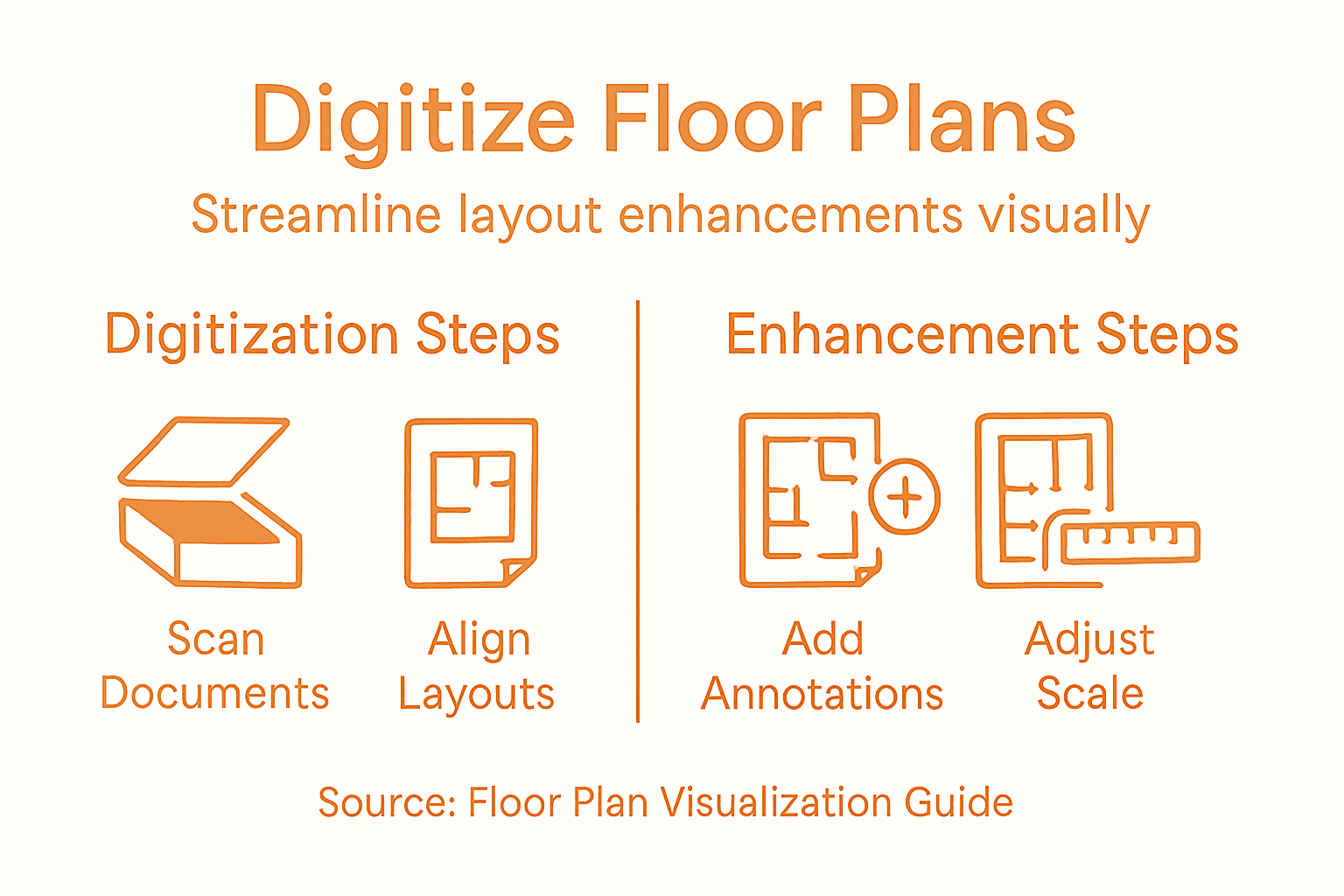
If you’re starting with printed or hand-drawn floor plans, begin by scanning them at high resolution—at least 300 DPI captures sufficient detail for accurate tracing. Position the original flat against the scanner to avoid distortion, and ensure even lighting across the entire document. For large format plans that exceed your scanner’s bed size, scan in sections and carefully align them afterward using registration marks or distinctive architectural features as reference points. The goal is creating a clean digital image that’s easy to work with in your CAD or visualization software.
Next, bring your scanned image into your chosen software and begin the digitization process. This involves:
- Aligning and scaling the scanned image to match known dimensions from your source materials
- Creating vector layers that trace walls, doors, windows, and other architectural elements
- Annotating spatial details including room labels, dimensions, and functional zones
- Cleaning up imperfections from the original scan or hand-drawn source
- Organizing layers logically so your visualization team understands the plan structure
Modern approaches to floor plan enhancement employ algorithms that automatically annotate spatial configurations with architectural details, which can accelerate your workflow if your software supports these features. However, don’t rely entirely on automation. Review the results carefully because automated processes sometimes misinterpret hand-drawn lines or unusual layouts. Your designer’s eye catches what algorithms miss.
Beyond basic digitization, look for opportunities to enhance your layouts before sending them to visualization. Add color coding to different functional zones, clarify circulation paths, or highlight key design features. If your software allows it, embed dimensional annotations that make the plan more professional and easier for clients to understand. These enhancements transform a simple floor plan into a communication tool that tells your design story more effectively.
Consider applying spatial reasoning and constraint-based customization techniques if your software supports them. These tools let you automatically adjust plans while maintaining design relationships and proportions. For example, if you widen a corridor, dependent spaces adjust proportionally. This capability becomes especially valuable when exploring design variations for client presentations.
A properly digitized floor plan is the foundation for every stunning 3D rendering that follows.
Verify accuracy throughout this process. Compare your digital layout against original measurements from your project materials. Check that doors swing into the correct rooms, windows align with exterior walls, and room dimensions match your specifications. Small errors at this stage compound into major problems when your visualization team creates 3D models based on flawed floor plans. Taking time now prevents expensive corrections later.
Export your finalized digital floor plan in formats your visualization software prefers. Most professional tools accept DWG, DXF, or PDF files. Test the export by reimporting the file and checking that all elements transferred correctly, layers remained organized, and no geometric data was lost. This final verification step ensures smooth handoff to your visualization partner and minimizes back-and-forth revisions.
Pro tip: Create a master file version of your digitized floor plan and maintain it separately from working versions. Use this master as your source for all visualization work and client deliverables, ensuring consistency across multiple rendering iterations and preventing accidental changes to your base plan.
Step 4: Incorporate 3D elements and textures
This is where your floor plan transforms from a flat diagram into an immersive spatial experience. Adding 3D geometry and realistic textures brings your design to life in ways that 2D plans simply cannot match. When clients see walls with actual thickness, materials with genuine surface qualities, and spaces with proper lighting interactions, they finally understand your design vision.
Start by building out your 3D geometry based on your digitized floor plan. Your visualization software will use the 2D plan as a foundation to extrude walls to their proper heights, create ceiling planes, and establish the basic volumetric space. This is straightforward work, but accuracy matters tremendously. Double-check that wall heights match your specifications, especially in spaces with varying ceiling elevations. Verify that door and window openings align exactly with your 2D plan. Small geometric inconsistencies become glaringly obvious once you add textures and lighting.
With your basic 3D structure in place, focus on surface modeling for all major elements. This involves:
- Wall surfaces receiving base materials and color treatments
- Floor finishes being mapped with accurate scale and direction
- Ceiling treatments including paint, texture, or exposed structure
- Door and window frames getting detailed profiles and material properties
- Built-in elements like cabinetry receiving appropriate surface treatments
Texture mapping is where presentations become photorealistic. Realistic texture mapping and illumination techniques transform simple geometric models into spaces that feel tangible and real. Rather than using generic placeholder textures, source high-quality texture maps that accurately represent your specified materials. If you specified white oak flooring, find a texture that captures the actual grain patterns and color variations of white oak. If walls are finished with a specific paint color, ensure your texture reflects how light interacts with that surface.
Pay particular attention to scale and proportion when applying textures. A wood plank texture applied too large makes the space feel cartoonish. Too small and surfaces look plasticky. Most professional visualization software lets you adjust texture scale independently, allowing you to get the proportions exactly right. This attention to detail separates amateur renderings from professional-quality presentations.
Consider layering materials for visual depth. Walls rarely consist of a single flat surface. Add subtle imperfections, consider how baseboards meet walls, account for trim details, and think about material transitions. These nuances make renderings feel authentic rather than sterile. When a client walks through a 3D walkthrough and notices how beautifully the flooring transitions into the base trim, they feel confidence in your design decisions.
Incorporate lighting-responsive materials strategically. Some surfaces should be matte and absorb light, others reflective and catch highlights. Creating photorealistic models from photographs involves understanding how materials behave under different lighting conditions. Glossy ceramic tiles behave entirely differently than matte concrete or soft fabric. Getting these material properties right determines whether your rendering looks like a photograph or a synthetic image.
The difference between adequate and exceptional presentations often comes down to texture quality and attention to material authenticity.
Don’t overlook smaller details that create visual interest. Textured wall finishes, subtle pattern variations in flooring, the warmth of wood grains, and the depth of fabric textures all contribute to creating spaces that feel lived-in and compelling. These details convince clients that your design will perform beautifully in reality.
When you’ve completed your 3D geometry and texture mapping, step back and evaluate the overall visual coherence. Do all materials work together harmoniously? Is the color palette balanced? Do material choices support the design concept? This is your opportunity to catch issues before final rendering, when corrections become expensive and time-consuming.
Pro tip: Build a library of textures and materials specific to your practice and frequently specified brands. Instead of sourcing textures for every project, reference your established library and customize as needed. This consistency speeds up production while ensuring visual quality remains high across all your presentations.
Step 5: Review and refine visual presentation
You’re nearly at the finish line. Your renderings are complete, textures are applied, and lighting looks convincing. Now comes the critical step that separates good presentations from exceptional ones. A thorough review and refinement process ensures your visualization communicates your design intent clearly and persuades clients to move forward with confidence.
Start by viewing your renderings across multiple contexts. How do they look on a large presentation screen? On a tablet during a client meeting? On a laptop in your office? Different viewing sizes reveal problems that aren’t visible on your primary work monitor. Text overlays that seem readable on a desktop might become illegible when projected. Colors that looked vibrant in your studio might appear different under different lighting conditions. Step back and evaluate whether your presentation works in real-world viewing scenarios.
Assess clarity and visual hierarchy. Your floor plan visualizations should guide viewers’ eyes naturally through the space. Ask yourself these critical questions:
- Does the rendering immediately communicate the spatial concept?
- Are key design features prominently visible or easily overlooked?
- Does the composition draw attention to what matters most?
- Is there visual clutter distracting from the main message?
- Do material choices enhance or confuse the design story?
Effective visual presentations require clear design with high-resolution images and minimal text to maximize audience comprehension. If your rendering includes annotations or labels, verify that they’re positioned clearly without obscuring important details. Text should enhance understanding, not compete with the visuals for attention. Consider whether every annotation is truly necessary or if some elements would be better explained verbally during your presentation.
Evaluate your color palette and lighting carefully. Do colors work together harmoniously, or do certain materials clash? Is the lighting realistic and appropriate for the space type? A residential living room should feel warm and inviting, while a commercial office might benefit from cooler, more neutral tones. Clients often make snap judgments based on how a space feels, and lighting sets that emotional tone. If something feels off, trust that instinct and make adjustments.
Check technical quality across all your renderings. Look for artifacts, unusual shadows, or rendering errors that pull viewers out of the immersive experience. Verify that image resolution is truly high quality—low-resolution renderings undermine your credibility regardless of how good the design is. Make sure that materials render consistently across different views. A marble floor should look identical whether shown in a wide shot or a close-up detail view.
Consider your overall presentation narrative. Audience-centered design principles maximize comprehension by using clear layouts and meaningful graphics that support your spoken explanation. Think about the order in which you’ll show renderings. Start with an overall context view so clients understand the space’s relationship to surroundings, then move to detailed views that highlight design features. This sequencing helps clients build understanding progressively rather than feeling overwhelmed by information.
The final review stage is where you catch details that slip through earlier steps and polish your presentation into something truly professional.
Gather feedback from colleagues if possible. Fresh eyes catch inconsistencies or confusing elements that you’ve become blind to after working intensively on the project. Ask them what they notice first, what surprises them, and whether anything seems unclear. This feedback often reveals simple fixes that significantly improve impact.
Make refinements systematically. If you identify issues, determine whether they require simple adjustments like lighting tweaks or more substantial changes like texture replacements. Prioritize changes that improve clarity and impact. Minor tweaks that only you would notice probably aren’t worth re-rendering time. Changes that affect how clients understand the design deserve attention.
Final step. Export your presentation materials in appropriate formats and resolutions for your delivery method. High-resolution images for printing, properly compressed versions for digital sharing, and versions optimized for presentation software all have different requirements. Getting the technical specs right ensures your beautiful renderings don’t get degraded by poor compression or resolution loss.
Use this table as a quick checklist for a successful floor plan visualization review:
| Review Aspect | What to Check | Impact on Presentation |
|---|---|---|
| Image Quality | High resolution, no artifacts | Professional, credible visuals |
| Color & Lighting | Harmonious palette, realistic ambiance | Conveys emotion, design intent |
| Annotation Clarity | Labels readable, not distracting | Enhances comprehension |
| Material Consistency | Surfaces match throughout all views | Maintains visual continuity |
| Narrative Flow | Logical order of views, context first | Better client understanding |
Pro tip: Set your presentation aside for at least a day after completing initial renderings, then review with fresh perspective. This distance helps you evaluate the work objectively and spot issues that fatigue blinds you to during intensive production sessions.
Elevate Your Floor Plan Visualizations with Professional 3D Renderings
Visualizing floor plans accurately and impactfully requires precise digitization, seamless integration of textures, and refinement to captivate your clients. If you have struggled with turning your detailed plans into photorealistic and immersive presentations, you are not alone. Common challenges include ensuring measurement accuracy, applying realistic materials, and selecting the right visualization tools to communicate your design vision clearly and effectively. These hurdles can slow down your workflow and undermine your client engagement.
Rendimension specializes in overcoming these exact challenges by delivering high-quality 3D architectural visualizations tailored to your project’s unique needs. Whether you need detailed 3D renderings, immersive walkthroughs, or virtual reality experiences, Rendimension helps architects, developers, and designers showcase their floor plans with stunning realism that truly resonates. Our collaborative approach ensures your project details are respected and your design story shines through every texture and every lighting effect.
Begin transforming your floor plan presentations today with expert visualization solutions designed to save you time and impress your clients. Visit Rendimension to explore how our services bring your floor plans to life. Don’t let technical complexity hold back your creativity. Experience the power of professional 3D rendering and take your presentations to the next level now. Learn more at https://rendimension.com/ and discover the difference meticulous architectural visualization can make.
Frequently Asked Questions
What are the essential materials I need to gather for visualizing floor plans?
To effectively visualize floor plans, you need to collect architectural drawings, sketches, CAD files, room measurements, and specifications for materials and finishes. Organize these documents to streamline the visualization process and clarify your design intent.
How do I select the right software for visualizing floor plans?
Start by assessing your project needs, such as whether you require simple 2D views or photorealistic 3D renderings. Choose software that aligns with your budget, existing skills, and the complexity of your projects to ensure a smooth workflow and impressive outcomes.
What steps should I follow to digitize and enhance my floor plan layouts?
Begin by scanning printed or hand-drawn floor plans at high resolution, then align and scale the scanned image in your software. Trace architectural elements and annotate spatial details to create a clean, editable digital layout that preserves your design intent.
How can I add 3D elements and textures to my floor plan effectively?
Start by creating 3D geometry based on your digitized floor plan, ensuring wall heights and openings align correctly. Apply high-quality textures that represent specified materials and maintain consistent scale to enhance realism and depth in your visualizations.
What should I look for when reviewing my visual presentations?
Evaluate your renderings for image quality, clarity, color harmony, and material consistency. Check that annotations are readable and positioned correctly while ensuring the narrative flows logically to communicate your design intent clearly.
How can I get feedback on my visualizations before finalizing them?
Gather input from colleagues or industry peers by presenting your renderings and asking for their impressions. Incorporate their feedback to make any necessary adjustments that improve clarity and overall impact.
Recommended
- Benefits Of 3D Floor Plans For Real Estate Marketing
- 3D Walkthroughs: Transforming Design Presentations
- 7 Essential Types Of 3D Visualization For Architects
- 7 Essential Architectural Visualization Examples For Pitch Success