Imagine transforming your design workflow in 2026 with vray sketchup mac os, where creative possibilities expand and performance reaches new heights. This comprehensive guide is designed to help Mac users unlock the full power of Vray, seamlessly integrated with SketchUp. You will discover step-by-step instructions, expert configuration tips, and proven strategies to optimize both software and hardware for professional-quality renders. Explore system requirements, installation procedures, interface walkthroughs, workflow enhancements, troubleshooting advice, and future innovations. Get ready to elevate your projects and stay ahead in the ever-evolving world of 3D design.
Understanding Vray and SketchUp on Mac OS in 2026
The creative landscape for 3D design has seen rapid transformation, especially for Mac users. Over the past years, vray sketchup mac os integration has become seamless, bringing powerful rendering to Apple devices. The 2026 release marked a major milestone, introducing native support for Apple Silicon and improved plugin compatibility. SketchUp’s evolution has also enabled smoother workflows with renderers, making it a staple for modern designers. Notably, native Apple Silicon optimization in Vray has delivered impressive speed and efficiency. According to industry reports, Mac-based design workflows have grown by 30 percent, reflecting the platform’s increasing popularity. For the latest compatibility and performance details, consult the SketchUp 2026 System Requirements.
Evolution of Vray and SketchUp Integration
The journey of vray sketchup mac os integration began with limited functionality, but by 2026, the experience is fully optimized. Early efforts struggled with cross-platform support, yet constant updates have bridged those gaps. Apple Silicon’s introduction was a turning point, allowing Vray to leverage the M1, M2, and M3 chips for advanced rendering. Today, both Vray and SketchUp offer native installers, ensuring smooth operation for Mac users. Enhanced plugin architectures have made it effortless to add Vray to SketchUp, and updates now arrive simultaneously across Windows and Mac. These advancements empower designers to create without technical barriers.
Why Mac OS? Advantages for Designers
Choosing Mac OS for vray sketchup mac os provides designers with unmatched stability and performance. Apple’s hardware-software synergy, especially with the latest M3 chips, ensures that rendering tasks are handled efficiently. The user experience in 2026 is smoother than ever, with optimized drivers and system updates tailored for creative professionals. MacBook Pro’s GPU acceleration allows Vray to deliver high-quality results quickly, even on complex scenes. Designers benefit from minimal crashes, fast boot times, and a distraction-free environment. For those seeking reliability and speed, Mac OS stands out as the preferred platform for 3D visualization and rendering.
Vray’s Unique Features on Mac OS
Vray sketchup mac os users now enjoy an impressive suite of features tailored for Apple hardware. Real-time ray tracing and advanced denoising significantly cut down post-processing times. The expanded material library offers a vast range of textures and presets, streamlining the workflow. GPU and CPU hybrid rendering takes full advantage of Mac’s processing power, resulting in notably faster render times compared to previous years. Recent benchmarks show a 25 percent improvement in rendering speed on Mac OS, outpacing many competitors. These features not only boost productivity but also enable the creation of truly photorealistic visuals with ease.
Key Use Cases and Industries
The impact of vray sketchup mac os spans multiple industries, transforming how professionals visualize their ideas. Architectural firms rely on this combination for detailed residential and commercial renderings, delivering immersive presentations to clients. Product designers use it to prototype and showcase new concepts with lifelike accuracy. Interior designers leverage the speed and realism of Vray on Mac OS to create compelling visuals for spaces before construction begins. The demand for photorealistic, immersive visuals continues to rise, making this toolkit essential for anyone aiming to stand out in today’s competitive design market.
Preparing Your Mac for Vray and SketchUp
Setting up your Mac for vray sketchup mac os is the foundation for a seamless rendering experience. Take time to ensure your hardware and software are in top shape before installation. This will help you avoid compatibility issues and maximize productivity.
System Requirements and Compatibility in 2026
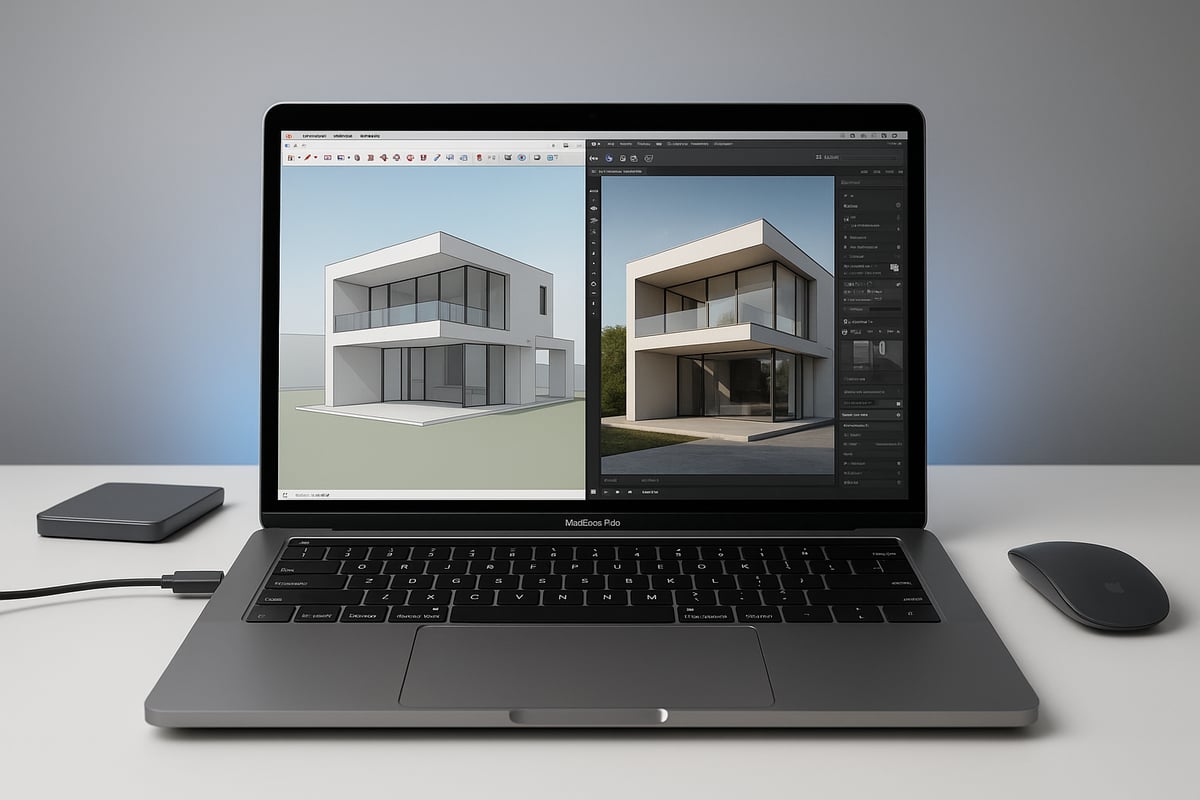
Before installing vray sketchup mac os, confirm your Mac meets or exceeds the required specifications. The 2026 versions of both SketchUp and Vray are optimized for Apple Silicon, enabling smoother performance and faster renders. Below is a summary of the typical requirements:
| Specification | Minimum | Recommended |
|---|---|---|
| Processor | Apple M1 | Apple M3 or later |
| RAM | 8 GB | 32 GB |
| Storage | 20 GB free | 1 TB SSD |
| GPU | Integrated (M1) | Dedicated (M3 GPU) |
| macOS Version | 13.0+ | 14.5+ |
For the latest compatibility details, consult the V-Ray for SketchUp System Requirements before proceeding. Ensuring your Mac matches these standards is crucial for optimal vray sketchup mac os performance.
Optimizing Mac OS for Rendering Performance
To unlock the full potential of vray sketchup mac os, optimize your system for demanding rendering tasks. Start by upgrading RAM and using a fast SSD, which will speed up both load and render times. Adjust graphics settings to prioritize performance, and ensure your Mac’s energy settings are set for maximum output.
- Close unnecessary background applications to free up resources.
- Regularly clear cache and temporary files.
- Keep your graphics drivers and macOS updated for stability.
Disabling system visual effects and automatic updates during work sessions can also reduce interruptions. This approach ensures vray sketchup mac os delivers consistently smooth and fast rendering.
Software Licensing and Legal Considerations
When installing vray sketchup mac os, always use official licensing models. In 2026, both Vray and SketchUp offer flexible subscription and perpetual license options. Subscriptions provide access to the latest features and updates, while perpetual licenses offer long-term ownership.
Carefully manage your license keys and user accounts. Avoid counterfeit software by purchasing only from authorized vendors. Staying compliant not only protects your investment but also ensures vray sketchup mac os receives timely updates and support.
Data Management and Backup Strategies
Efficient file organization and robust backup routines are essential for vray sketchup mac os workflows. Structure your project folders logically, separating assets, renders, and references. Use version control tools to track changes, especially when collaborating with others.
Recommended backup solutions include:
- Time Machine for automated local backups.
- iCloud or other cloud services for offsite redundancy.
- External SSDs for fast, manual backups.
A disciplined approach to data management safeguards your work and enables smooth recovery in case of unexpected issues, keeping your vray sketchup mac os projects secure and accessible.
Step-by-Step Guide: Installing and Setting Up Vray for SketchUp on Mac OS
Setting up vray sketchup mac os is straightforward when you follow the right steps. This section will walk you through downloading, installing, activating, configuring, and testing your setup, ensuring you get the most from your creative workflow.
Downloading and Installing SketchUp and Vray
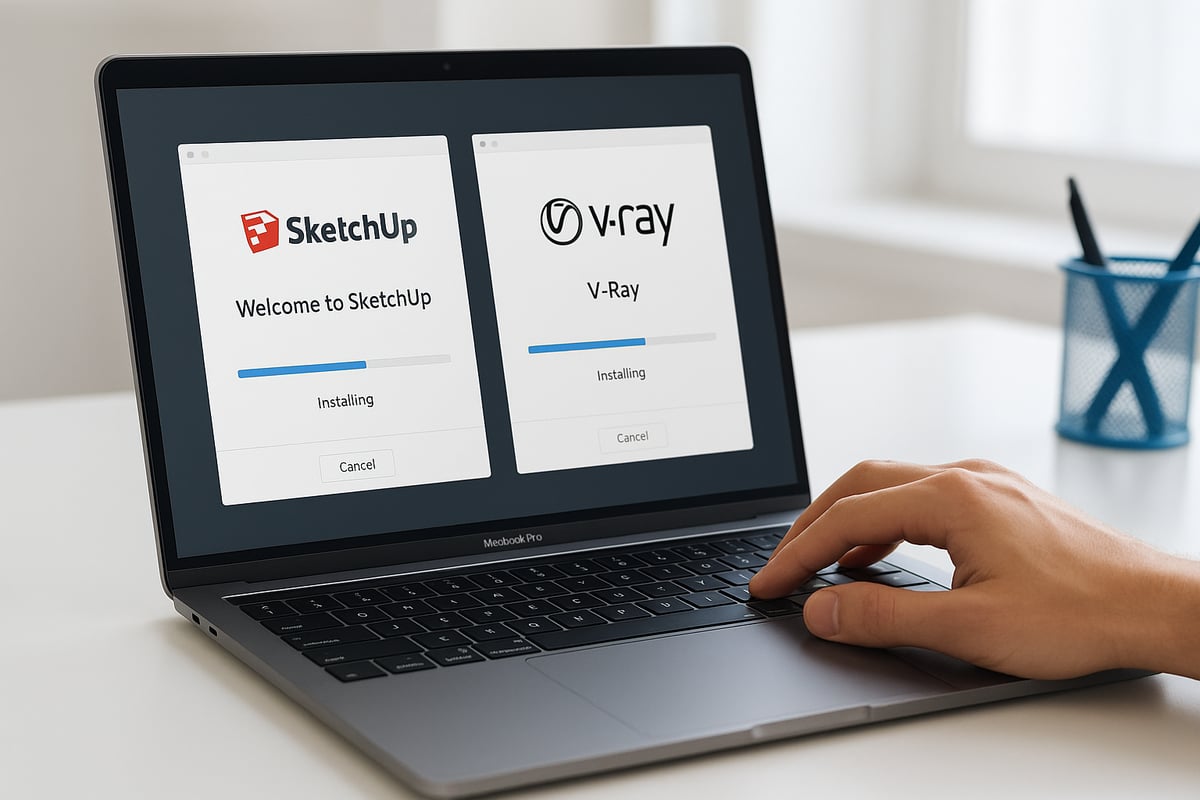
Start by downloading the latest versions of SketchUp and Vray for Mac OS from their official websites. Make sure your Mac meets the minimum system requirements to ensure optimal performance with vray sketchup mac os.
After downloading SketchUp, open the installer and follow the guided prompts. Once installed, launch SketchUp to verify the application runs smoothly. Next, download the Vray plugin specifically designed for Mac OS. Double-click the Vray installer, then follow on-screen instructions to integrate it with SketchUp.
During installation, you may encounter common issues such as missing dependencies or permission errors. If so, consult the Installing V-Ray for SketchUp guide for troubleshooting steps and detailed prerequisites. This ensures a seamless setup when working with vray sketchup mac os.
Always install plugins from trusted sources to avoid compatibility issues or security risks. Once both applications are installed, proceed to activation.
Activating and Registering Your Software
Activation is essential for accessing the full capabilities of vray sketchup mac os. Start by opening SketchUp, then navigate to the extension manager to locate Vray.
Enter your license key when prompted. You may need to log in to your user account for verification. For multi-user environments, assign licenses through your organization’s management portal.
Keep your license details secure and avoid sharing credentials. If you encounter errors during activation, check your internet connection or consult the support documentation for vray sketchup mac os. Successful activation unlocks all features for your design projects.
Initial Configuration and Preferences
Configuring vray sketchup mac os for your specific hardware ensures efficient workflows. Begin by setting up your default project templates in SketchUp, tailored to your industry or preferred units.
Open the Vray settings panel and adjust rendering preferences. For Apple Silicon Macs, enable GPU rendering to maximize performance. Customize interface layouts to match your workflow, arranging toolbars and panels for easy access.
You can save your preferred settings as defaults for future projects. For advanced users, consider importing custom material libraries and linking external texture folders. Configuring vray sketchup mac os properly at this stage saves time and boosts productivity throughout your projects.
Testing Your Setup: First Render
To confirm your vray sketchup mac os installation, load a sample SketchUp model. Apply basic materials and lighting to the scene.
Initiate a test render using Vray’s default settings. Observe the render times and compare results between CPU and GPU modes, adjusting settings if necessary for optimal speed.
If you encounter errors or unexpected results, review the error log for details. Most common issues, such as missing textures or unsupported formats, can be resolved by revisiting your configuration. A successful test render indicates your vray sketchup mac os setup is ready for production.
Updating and Maintaining Your Software
Regular updates keep vray sketchup mac os running smoothly and securely. Enable auto-update features in both SketchUp and Vray to receive the latest patches and improvements.
Monitor plugin compatibility after each update. If you install additional extensions, check that they work seamlessly with vray sketchup mac os.
Schedule periodic maintenance, including backing up custom settings and project files. Staying current with updates not only enhances performance but also ensures you access the newest features as they become available.
Mastering the Vray for SketchUp Workflow on Mac OS
Unlocking the full potential of vray sketchup mac os requires more than just installation. It involves mastering the interface, exploring creative material workflows, utilizing advanced lighting, and understanding rendering settings. This section guides you through each critical step to help you elevate your renders and achieve professional results.
Navigating the Vray Interface
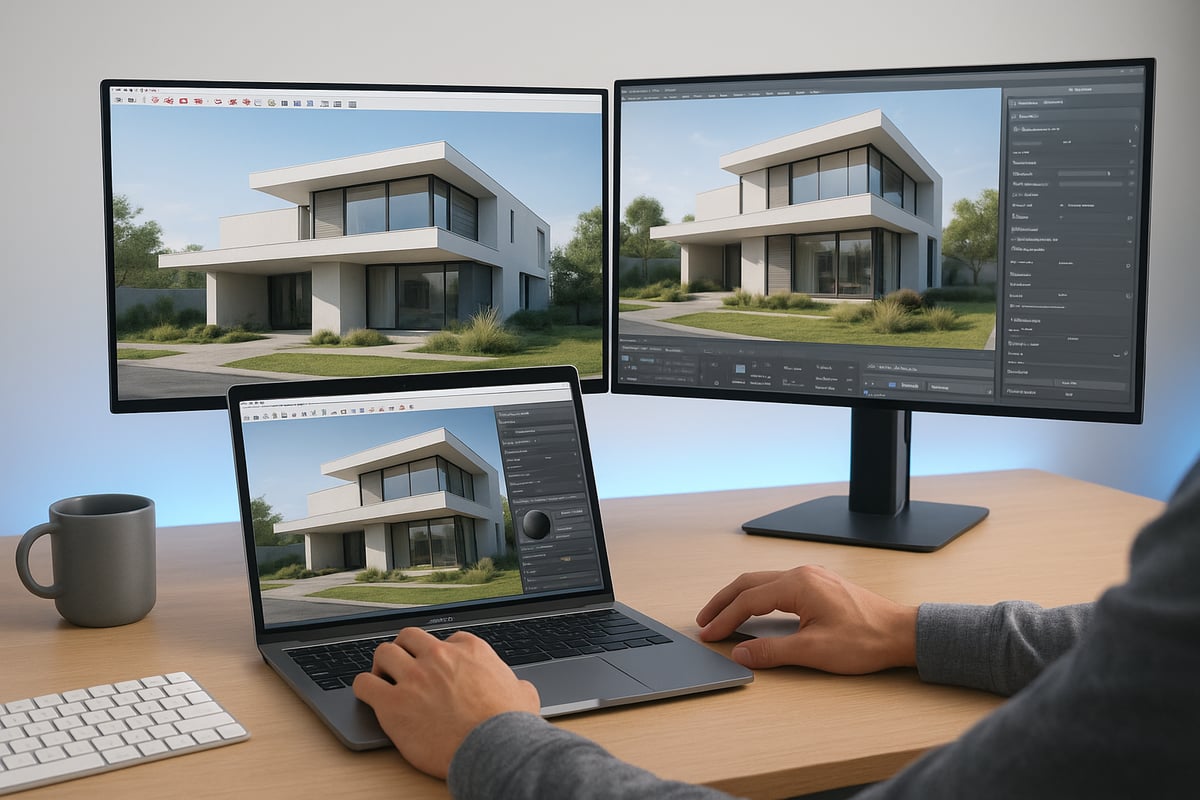
The vray sketchup mac os interface is designed for efficiency and flexibility. Upon launching Vray within SketchUp, you'll see a streamlined toolbar, a dedicated asset editor, and real-time render viewport. Each component is tailored for Mac OS, with intuitive icons and smooth gestures.
To customize your workspace:
- Drag and dock Vray toolbars to preferred locations.
- Use the asset editor for quick access to lights, materials, and settings.
- Set up a dual-monitor workflow, placing the render viewport on one screen and the modeling window on another for optimal multitasking.
Navigating the interface efficiently can save time and reduce errors. Learn the shortcut keys specific to vray sketchup mac os, such as toggling the VFB (Vray Frame Buffer) or accessing the material editor. Familiarize yourself with the right-click context menus, which provide access to frequently used tools. Customizing your interface supports a smoother creative process and improves productivity.
Materials and Textures: Creating Realism
Achieving photorealistic results on vray sketchup mac os begins with mastering materials and textures. The Vray material library provides a vast selection of pre-built shaders, including metals, glass, wood, and advanced composites.
To create unique surfaces:
- Browse the material library and drag materials onto SketchUp objects.
- Edit parameters such as reflection, glossiness, and bump mapping directly in the asset editor.
- Import custom textures by dragging image files into the Vray material slot.
For advanced realism, combine procedural textures with bitmap images, adjusting UV mapping as needed. Use the preview swatch to check materials before rendering. Frequent use of high-resolution textures, paired with Mac OS’s GPU acceleration, ensures crisp, detailed surfaces even in complex scenes.
Experiment with layering materials and using displacement maps for added depth. This approach sets vray sketchup mac os apart in producing lifelike renderings for any design project.
Lighting Techniques for Stunning Renders
Lighting is a cornerstone of photorealism in vray sketchup mac os. Vray offers several lighting types including sun, spot, IES, and HDRI, each with unique properties for different scenarios.
Best practices for impactful lighting:
- Use the Vray Sun and Sky system for natural daylight effects, adjusting sun angle for golden hour warmth.
- Add spotlights to highlight interior features or product details.
- Implement HDRI environments to create realistic reflections and ambient lighting.
Experiment with light intensity, color temperature, and shadows. For exterior renders, simulate different times of day to study how light interacts with architectural forms. For interiors, combine natural and artificial lights for balanced illumination.
Mac OS hardware accelerates real-time lighting previews, allowing you to iterate quickly. Mastering lighting in vray sketchup mac os elevates your visual storytelling and captures the mood of your designs.
Camera and Composition Tools
The camera tools in vray sketchup mac os empower you to frame your scenes with precision. Adjusting camera settings such as focal length, depth of field, and exposure helps create compelling compositions.
Key techniques for camera setup:
- Use the rule-of-thirds grid overlay to align focal points.
- Select suitable focal lengths for wide interiors or tight product shots.
- Adjust depth of field for soft background blur, emphasizing the subject.
For real estate or interior visualization, set up multiple camera angles to showcase space and flow. The interactive camera controls in vray sketchup mac os make it easy to switch perspectives and refine compositions on the fly.
Save camera presets for consistency across projects. Experiment with tilt-shift effects to minimize distortion in tall building renders. These tools ensure your final images are visually engaging and professionally composed.
Rendering Settings and Output Optimization
Balancing quality and speed is essential in vray sketchup mac os. The settings panel features both quick presets and detailed custom controls for fine-tuning output.
When preparing for final renders:
- Choose from draft, medium, or high-quality presets based on project needs.
- Manually adjust parameters such as noise threshold, sample count, and denoising filters for optimal results.
- Select output formats (PNG, TIFF, JPEG) and set resolutions suitable for print or web.
Here's a quick comparison of typical settings:
| Setting | Draft | Production | High-Res Print |
|---|---|---|---|
| Resolution | 1280×720 | 1920×1080 | 4000×3000 |
| Noise Threshold | 0.05 | 0.02 | 0.01 |
| Denoising | On (Basic) | On (Advanced) | On (Full) |
Take advantage of Vray’s real-time feedback to preview changes instantly. For more workflow tips, you can explore SketchUp 3D rendering techniques for deeper insights into optimizing your vray sketchup mac os pipeline.
Remember to test different settings on sample scenes to find the best balance for your hardware. Efficient output management ensures your renders are both stunning and delivered on time.
Advanced Tips, Troubleshooting, and Workflow Enhancements
Unlock the full potential of vray sketchup mac os with expert strategies for speed, reliability, and creative collaboration. This section delivers actionable insights, from boosting render performance to leveraging the latest community resources.
Performance Optimization and Render Speed
Maximizing performance in vray sketchup mac os involves both hardware and software tuning. Start by ensuring your Mac is equipped with ample RAM and a fast SSD. For large projects, utilize GPU acceleration on Apple Silicon for significant speed gains. Adjust Vray settings to enable hybrid rendering, balancing CPU and GPU for complex scenes.
Try these optimization strategies:
- Close background applications to allocate more resources.
- Use Vray proxies and instancing to handle high-poly objects efficiently.
- Leverage the latest MacBook Pro GPU features for faster previews.
For more detailed hardware-specific advice, visit the Vray for MacBook Air guide. With these steps, vray sketchup mac os can achieve up to 40% faster render times, keeping your workflow smooth.
Troubleshooting Common Issues
Even the most robust vray sketchup mac os setup can encounter issues. Plugin crashes, missing textures, or compatibility errors are common but manageable. Begin troubleshooting by reviewing the Vray error log, which often highlights the root cause.
Follow this quick checklist:
- Confirm plugin versions match your SketchUp and Mac OS build.
- Re-link any missing textures using the asset manager.
- Reset Vray preferences if persistent errors occur.
If a problem persists, consult official support forums or restore from a recent backup. Consistent organization of project files helps prevent broken links. A proactive approach ensures vray sketchup mac os remains reliable for every project.
Workflow Automation and Scripting
Automating repetitive tasks in vray sketchup mac os can save hours on complex projects. The V-Ray Script Editor lets you create scripts for batch rendering or automating scene setup. For instance, automate material assignments or lighting setups across multiple files with simple scripts.
Example batch rendering script:
for scene in scenes:
    render(scene)
Key automation tips:
- Use templates for common project types.
- Schedule overnight renders for heavy scenes.
- Explore third-party automation plugins compatible with Mac OS.
With workflow automation, vray sketchup mac os users can boost efficiency and focus on creative work.
Collaborative Workflows and Cloud Rendering
Modern design teams rely on collaboration features in vray sketchup mac os. Integrating with cloud rendering services enables multiple users to work on the same project simultaneously. Share assets via cloud drives or built-in sharing tools for seamless teamwork.
Collaboration essentials:
- Set up shared folders for project files and textures.
- Use cloud rendering for high-res outputs without taxing local hardware.
- Implement version control to track changes and avoid conflicts.
Real-time updates and remote rendering empower vray sketchup mac os users to deliver impressive results, even on tight deadlines.
Staying Up-to-Date: Learning and Community Resources
Continuous learning is vital for mastering vray sketchup mac os. Engage with official forums, join webinars, and follow expert tutorials to stay ahead. Community-driven resources often provide solutions to Mac-specific challenges and emerging features.
Recommended learning channels:
- Vray and SketchUp official forums
- Online courses and certification programs
- User groups focused on Mac OS workflows
For strategies to achieve photorealistic results, explore the guide to photorealistic rendering success. By tapping into these resources, vray sketchup mac os users can keep their skills sharp and projects competitive.
The Future of Vray and SketchUp on Mac OS: Trends and Innovations
The landscape of 3D visualization is evolving rapidly, and the future of vray sketchup mac os promises to redefine creative workflows for designers and architects. Staying ahead in this field means keeping an eye on technological breakthroughs, industry trends, and strategies for professional growth.
Emerging Technologies in 3D Rendering
In 2026, emerging technologies are transforming how professionals use vray sketchup mac os. AI-powered denoising tools now deliver cleaner renders in real time, significantly reducing post-processing workloads. Material generation powered by machine learning allows users to create hyper-realistic surfaces with minimal manual tweaking.
Real-time rendering advancements are making interactive project reviews possible directly within SketchUp, further streamlining the design process. Vray’s integration with AR and VR platforms enables immersive client presentations, setting new standards for engagement and visualization.
Designers can now leverage these trends to experiment with lighting, materials, and camera positions in ways that were previously out of reach. This forward leap in technology empowers creative professionals to deliver more compelling and innovative results.
Predictions for 2026 and Beyond
Looking ahead, the future of vray sketchup mac os is shaped by several key trends. Cloud-based rendering is expected to become mainstream, giving users access to virtually unlimited processing power and speeding up project delivery. AI-driven design will further automate repetitive tasks, allowing designers to focus on higher-level creativity and strategic thinking.
With each new Apple hardware release, such as next-generation silicon chips, rendering performance and efficiency continue to improve. These advancements are anticipated to enable even more complex scenes, higher resolutions, and faster turnaround times for demanding visualization projects.
Staying informed about these updates will be essential for anyone seeking to maintain a competitive edge. The ability to adapt quickly to new tools and workflows will define success in the years to come.
Preparing for Continued Success
To thrive in the evolving landscape of vray sketchup mac os, designers must invest in ongoing education and skills development. Participating in online courses, webinars, and industry events will keep professionals updated on best practices and innovations.
Building a portfolio that showcases Vray-rendered projects on Mac OS can open doors to new opportunities and clients. For those focused on architectural rendering, resources like the Architectural visualization step-by-step guide offer valuable insight into elevating project quality and workflow.
By staying proactive, embracing new technologies, and continually refining their craft, designers can ensure long-term success in this dynamic industry.